# AI assistant overview
> What the built-in AI assistant can do — answer from your live ledger, draft documents for your confirmation, read receipts — and what it never does.
Canonical: https://docs.getonebooks.com/ai/overview/
Language: en
Documentation index: https://docs.getonebooks.com/llms.txt
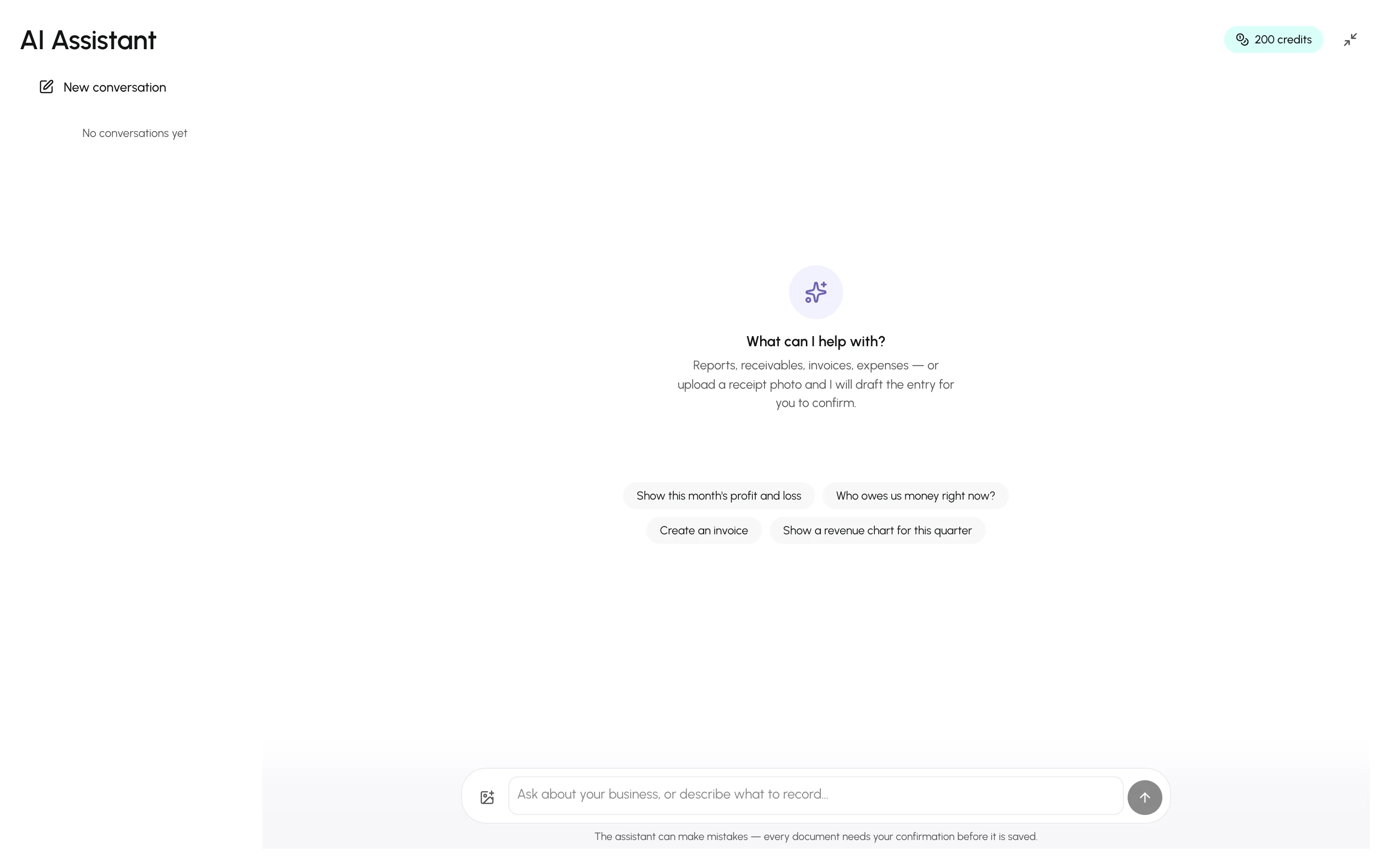
The **AI Assistant** in the sidebar is a chat that works only on your business's books. It answers with figures pulled from the ledger at that moment, renders reports as cards you can download, and prepares invoices, expenses, payments, purchases, customers and suppliers as **proposals** that you confirm with a button.
## What it can do
- **Report on your books** — profit and loss, balance sheet, cash flow, trial balance, ledgers, receivables and payables aging, tax summaries, and lookups of invoices, purchases, expenses, payments, customers, suppliers and items. See [Ask for reports](https://docs.getonebooks.com/ai/reports/).
- **Draft documents** — "Create an invoice for Al Futtaim for 20 kg of espresso beans" produces a proposal card; nothing is saved until you press **Confirm**. See [Draft documents with proposals](https://docs.getonebooks.com/ai/drafting/).
- **Read receipt photos** — attach an image and it extracts the date, supplier, lines and tax into a proposal. See [Receipt photos](https://docs.getonebooks.com/ai/receipts/).
- **Explain how to use OneBooks** — "how do I write off an invoice?" searches this documentation and answers with links.
- **Reply in your language** — it answers in the language your interface is set to, or the language you write in.
## What it cannot do — by design
- It cannot **delete, void, edit or refund** anything. Corrections stay in the app, where the rules are enforced.
- It cannot save a document without a human pressing **Confirm** on the proposal card.
- It only sees **this business**. Nothing from other businesses or other users' conversations.
- It refuses off-topic requests (general knowledge, coding, creative writing) so credits are spent on your books.
Full detail: [Safety, privacy and limits](https://docs.getonebooks.com/ai/safety/).
## Starting a conversation
1. Open **AI Assistant** in the sidebar.
2. Pick a suggestion — "Show this month's profit and loss", "Who owes us money right now?" — or type your own question in the composer and press **Enter**.
3. Conversations are kept in the rail on the side, grouped by day; **New conversation** starts a fresh thread and **Delete conversation** removes one (confirmed documents stay in your books).
## Credits
Each business receives **200 AI credits a week**, resetting on the weekday and hour it signed up. The chip in the header shows the balance and the renewal date. See [Credits and limits](https://docs.getonebooks.com/ai/credits/).
## Connecting Claude, ChatGPT and other agents
The same capabilities are available to Claude, Claude Code, ChatGPT, OpenClaw and any other MCP client through OneBooks' MCP server, with the same confirmation rule. See [Connect Claude, ChatGPT and other AI agents](https://docs.getonebooks.com/ai/mcp/).
## Related
- [Ask for reports and figures](https://docs.getonebooks.com/ai/reports/)
- [Draft documents with proposals](https://docs.getonebooks.com/ai/drafting/)
- [Safety, privacy and limits](https://docs.getonebooks.com/ai/safety/)