

Fiscal years, locking and closing
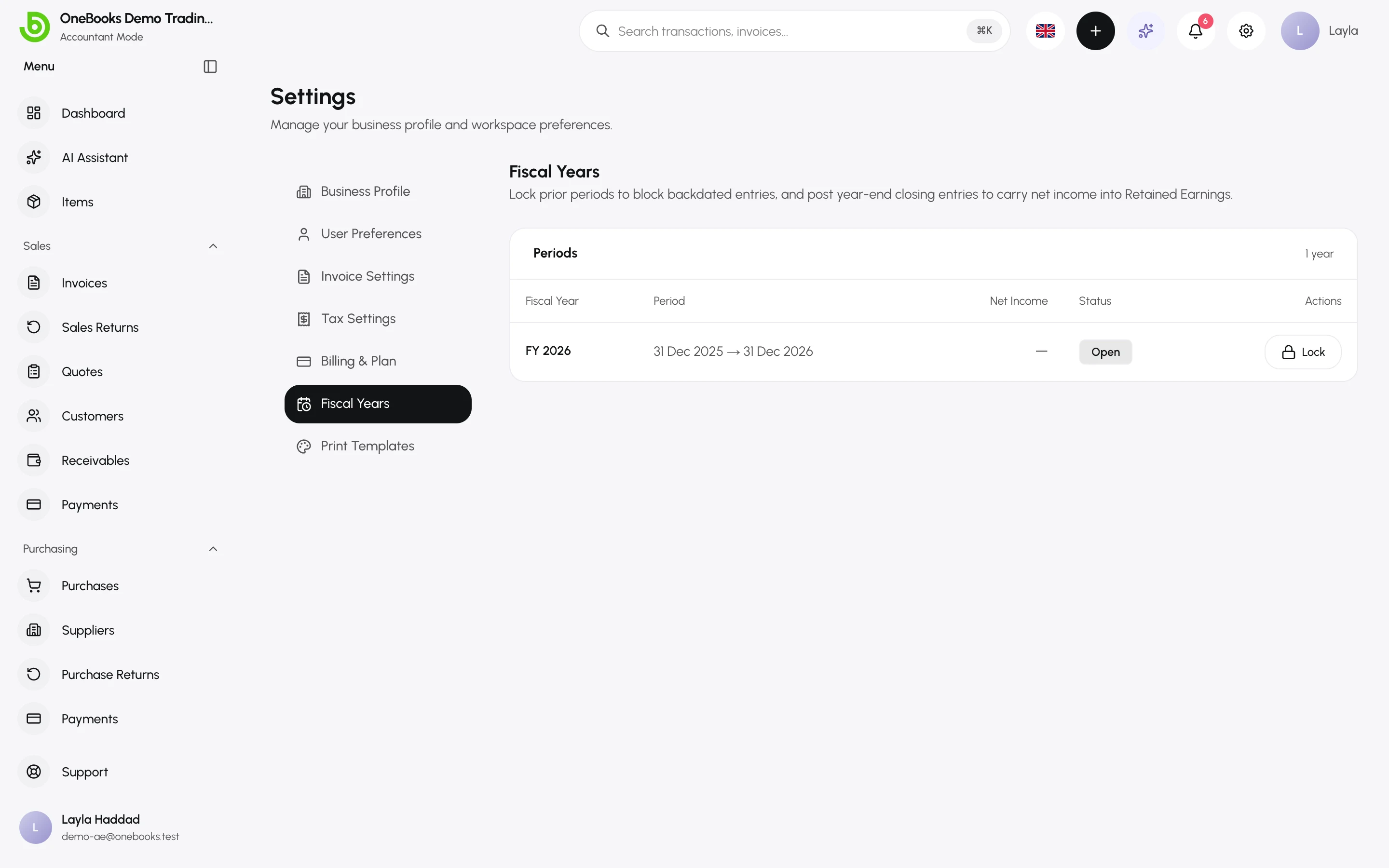
Settings → Fiscal Years lists your fiscal years, each Open, Locked or Closed. OneBooks creates the current year automatically from the start month in your company settings.
Lock a period
Section titled “Lock a period”Locking stops anyone from posting, editing or reversing anything dated inside the year — the usual step once the accountant has finished with it or the tax return is filed.
- Select Lock on the year.
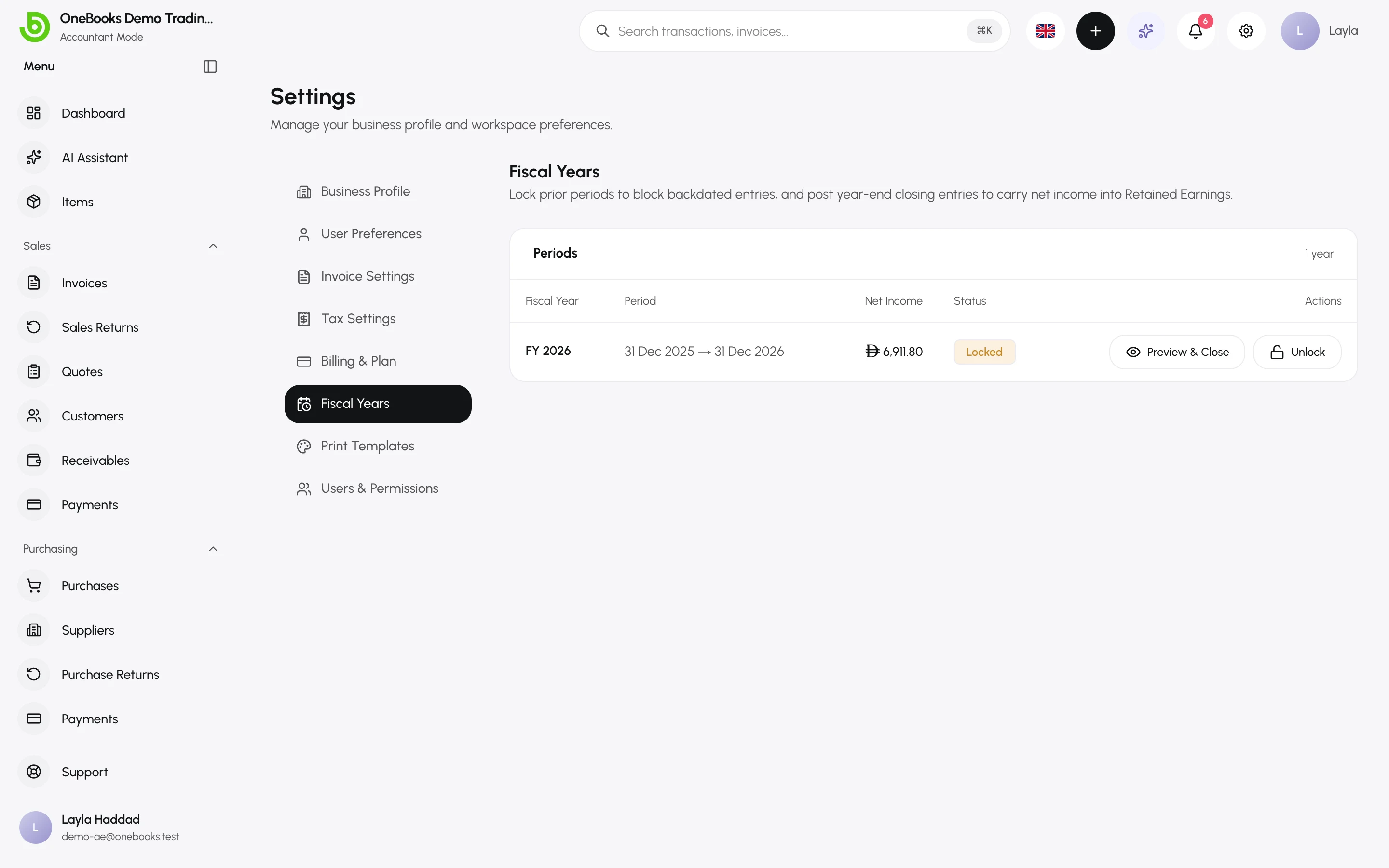
- To make changes later, select Unlock; lock it again when done.
Any attempt to post into a locked year is rejected with a clear message naming the period.
Close the year
Section titled “Close the year”Closing transfers the year’s net income into retained earnings so the new year’s profit and loss starts at zero. The year must be locked first.
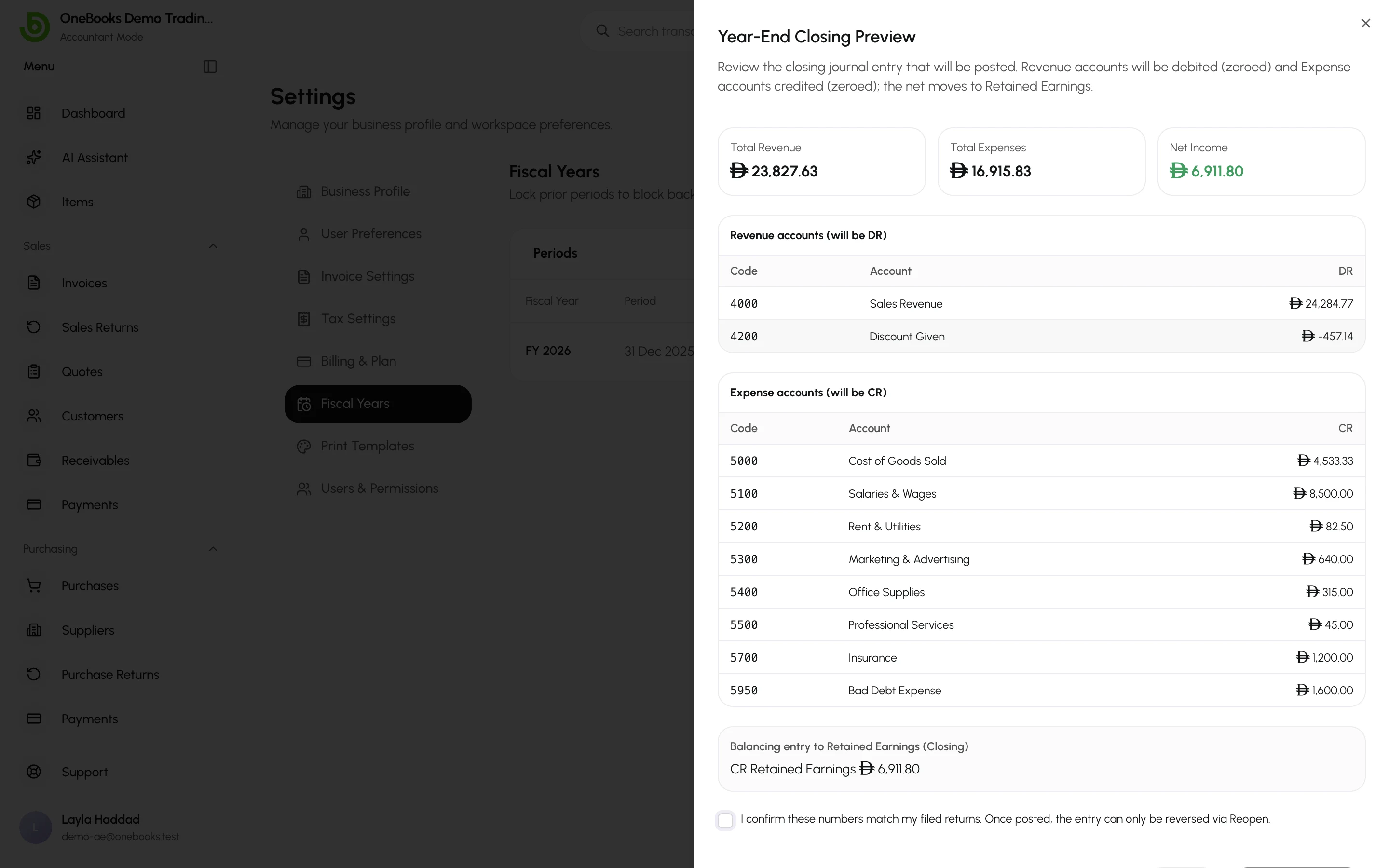
- Select Preview & Close. The preview lists every revenue account (to be debited to zero), every expense account (to be credited to zero), and the balancing line to 3200 Retained Earnings (Closing).
- Check the net income against your accountant’s figure.
- Confirm. The status becomes Closed and the closing entry is posted on the year’s last day.
Reopen a year
Section titled “Reopen a year”Reopen on a closed year posts a reversal of the closing entry on the same date and returns the year to Locked. Use it only to fix a genuine error, then close again.