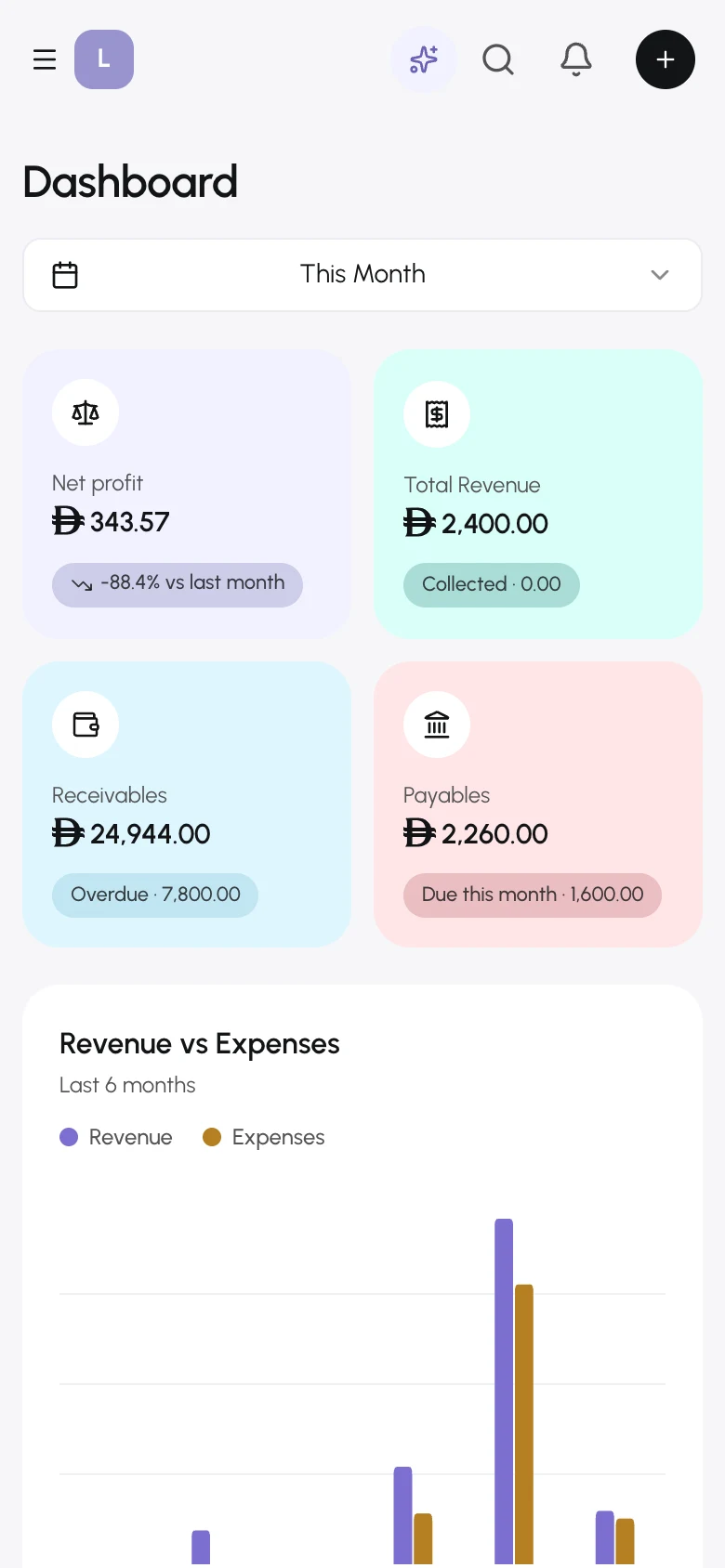
OneBooks has one layout: a sidebar of areas on the start side, a header with search and quick actions, and the page in the middle. On phones the sidebar becomes a drawer.
The sidebar
Section titled “The sidebar”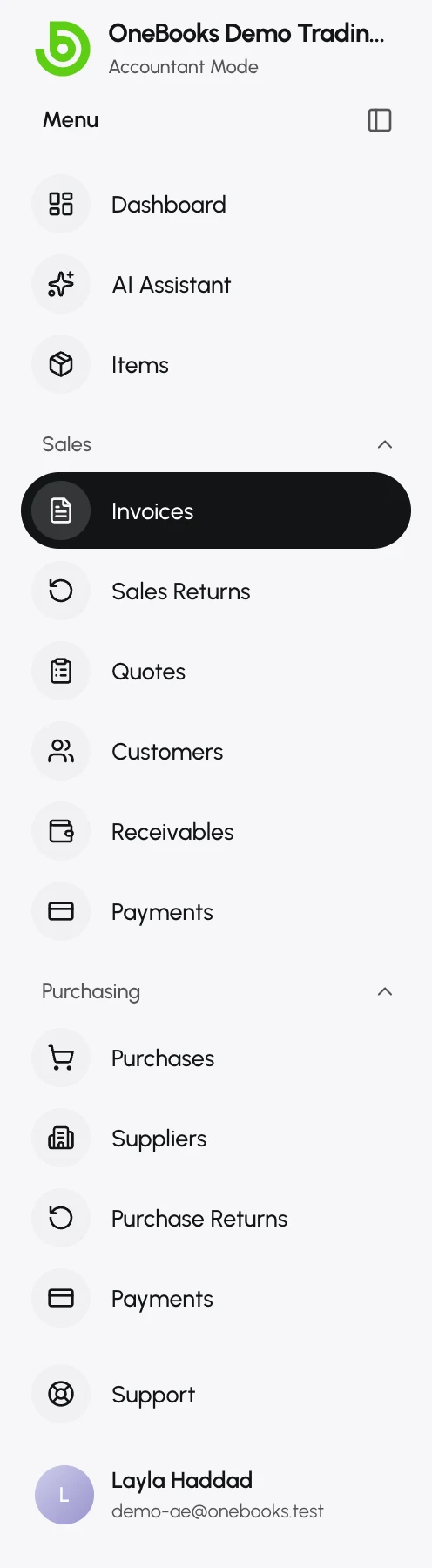
- Groups (Sales, Purchasing, Accounting, Reports, Data) expand and collapse; the arrow next to a group toggles it.
- The Accounting group appears only in Accountant mode. ZATCA appears only for Saudi businesses.
- Use the collapse control at the top to shrink the sidebar to icons; hover to peek.
- Support and your user menu (Settings, Help, Logout) sit at the bottom.
The header
Section titled “The header”- Search opens the command palette (see below).
- Quick Create creates a Sales Invoice, Purchase, Quote, Expense or Payment from anywhere.
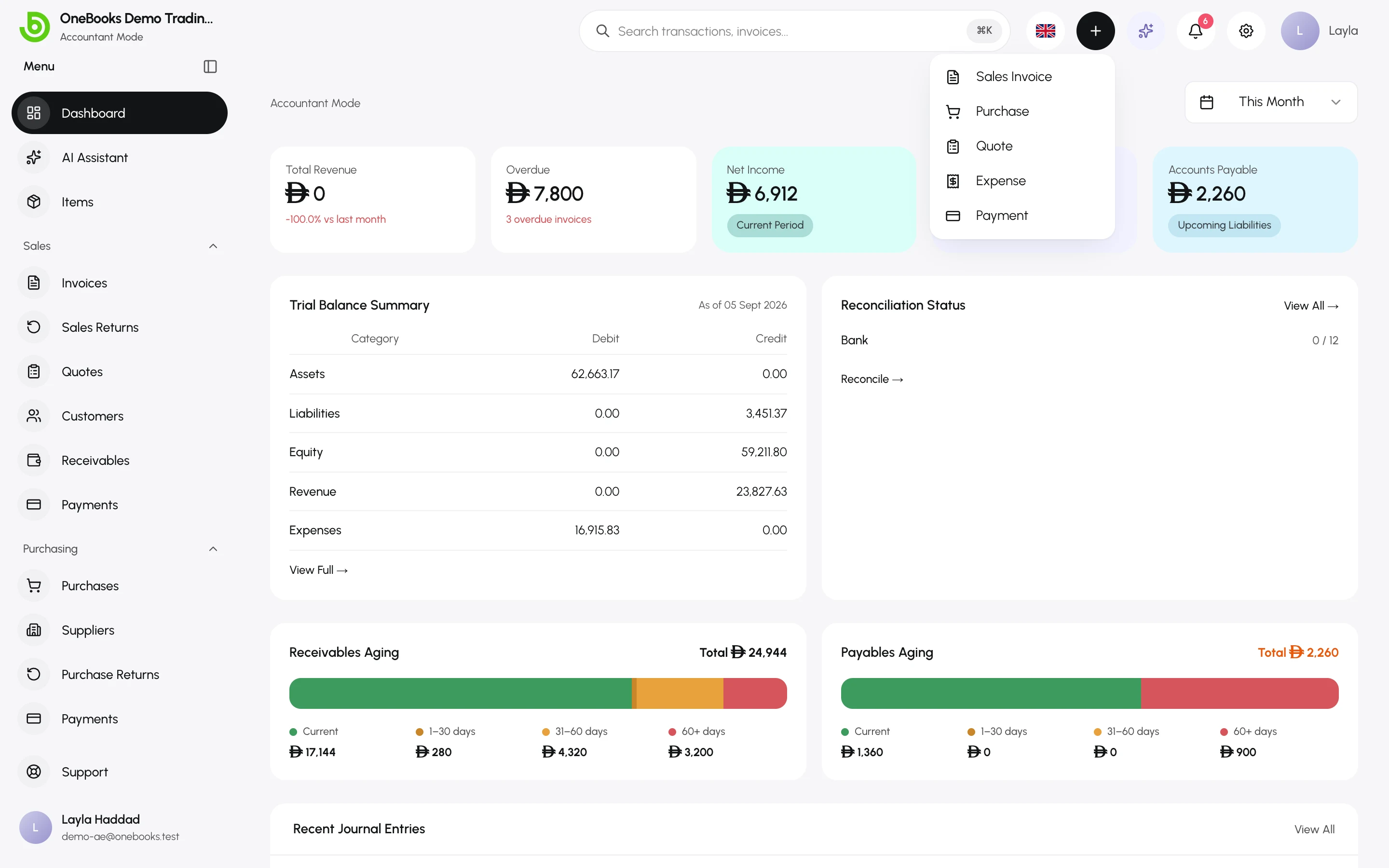
- Notifications lists overdue and due-soon invoices and bills, and draft invoices waiting to be sent.
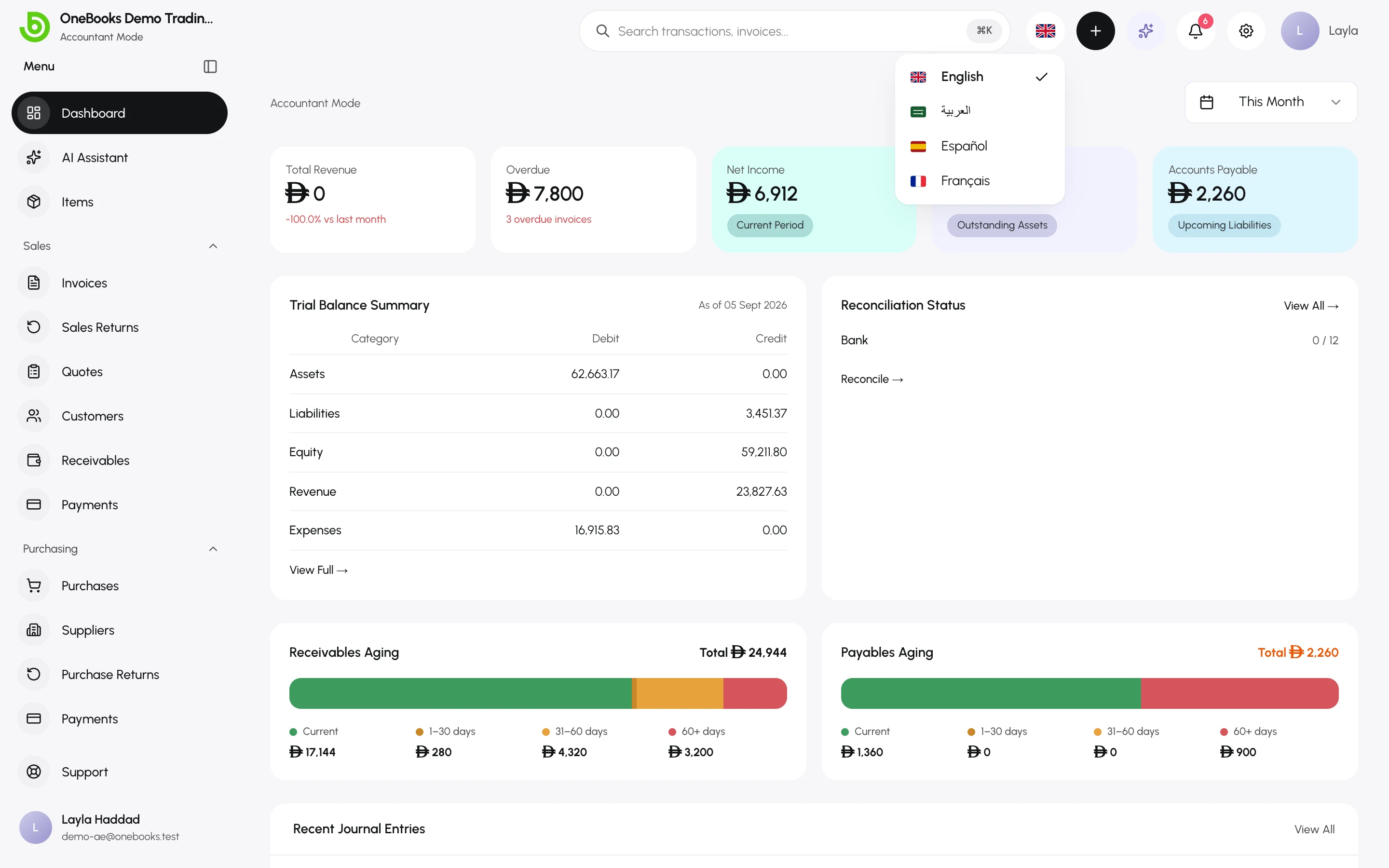
- The language button switches between English, العربية, Español and Français. Arabic flips the whole layout to right-to-left.
- The AI Assistant button opens the assistant — see AI assistant overview.
Command palette
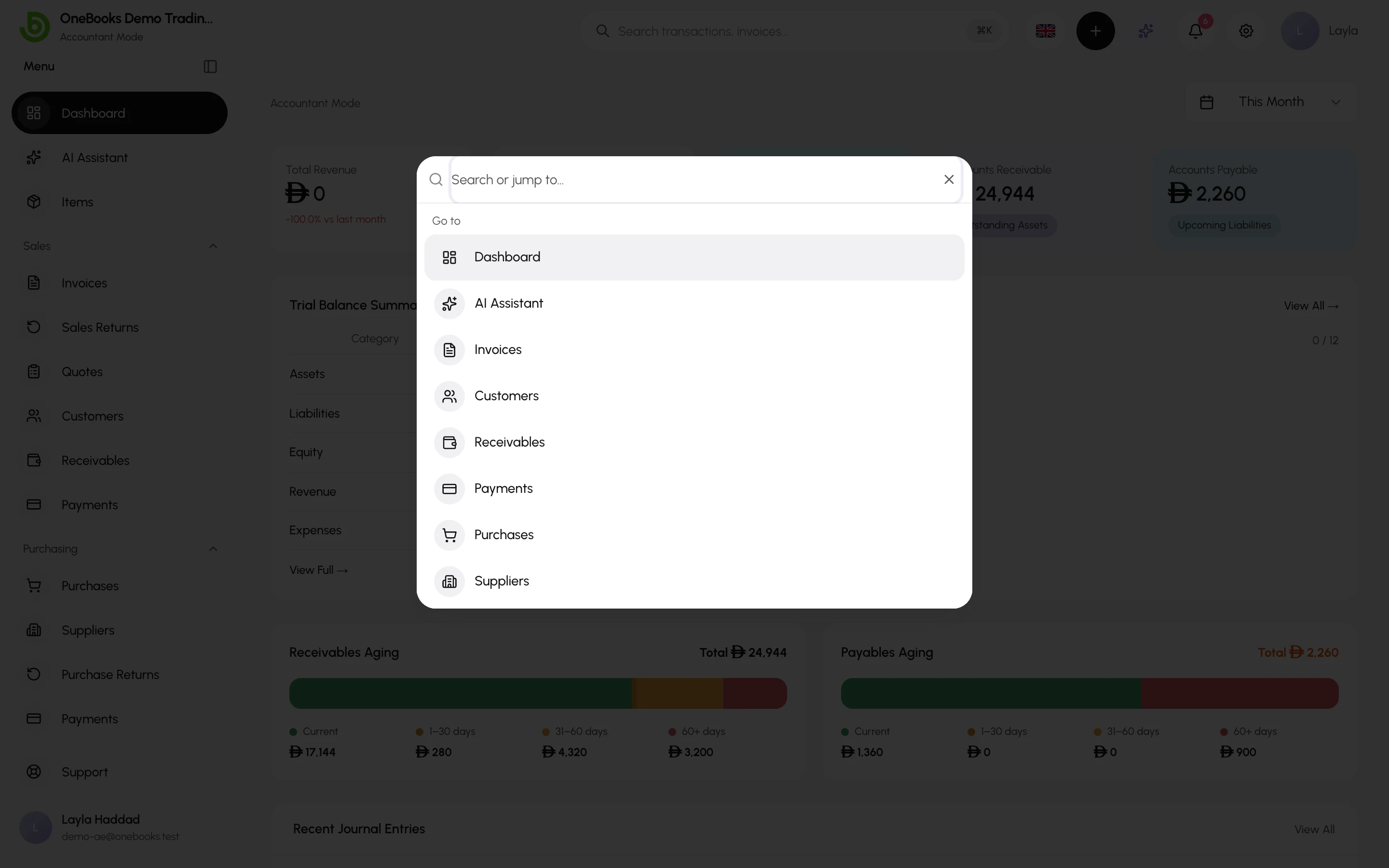
Section titled “Command palette”Press ⌘K (Mac) or Ctrl+K (Windows) or select the search box. Type to search invoices, customers, suppliers and items, jump to any page under Go to, or start a document under Create. Use the arrow keys and Enter; Esc closes it.
Your user menu
Section titled “Your user menu”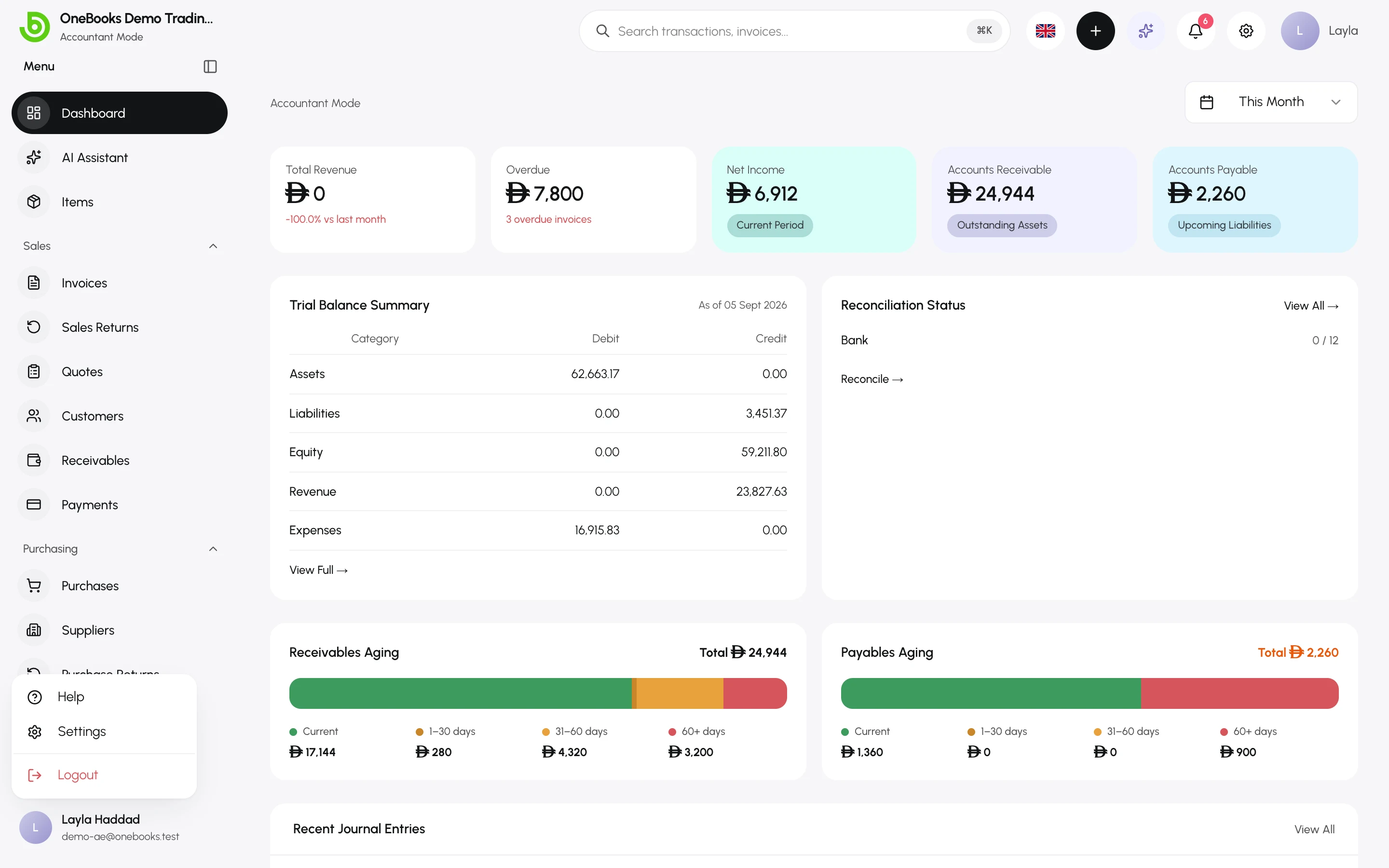
- Help opens this documentation in your language.
- Settings opens company, tax, fiscal year, users, billing and personal preferences.
- Logout ends the session on this device.
Appearance
Section titled “Appearance”Settings → User Preferences → Appearance offers Light, Dark and System. The choice is stored per device.
On a phone
Section titled “On a phone”The sidebar becomes a drawer behind the menu button; lists become cards with the most important figures first; long tables scroll sideways. Every workflow in this documentation works on a phone, including creating and sending invoices.