

Choose your country and tax setup
Your country is the one setting that shapes everything else: currency, how many decimal places amounts carry, what the tax is called, its default rate, and whether prices are entered tax-inclusive. OneBooks supports every country; the ones below also get country-specific guidance in this documentation.
Pick the country
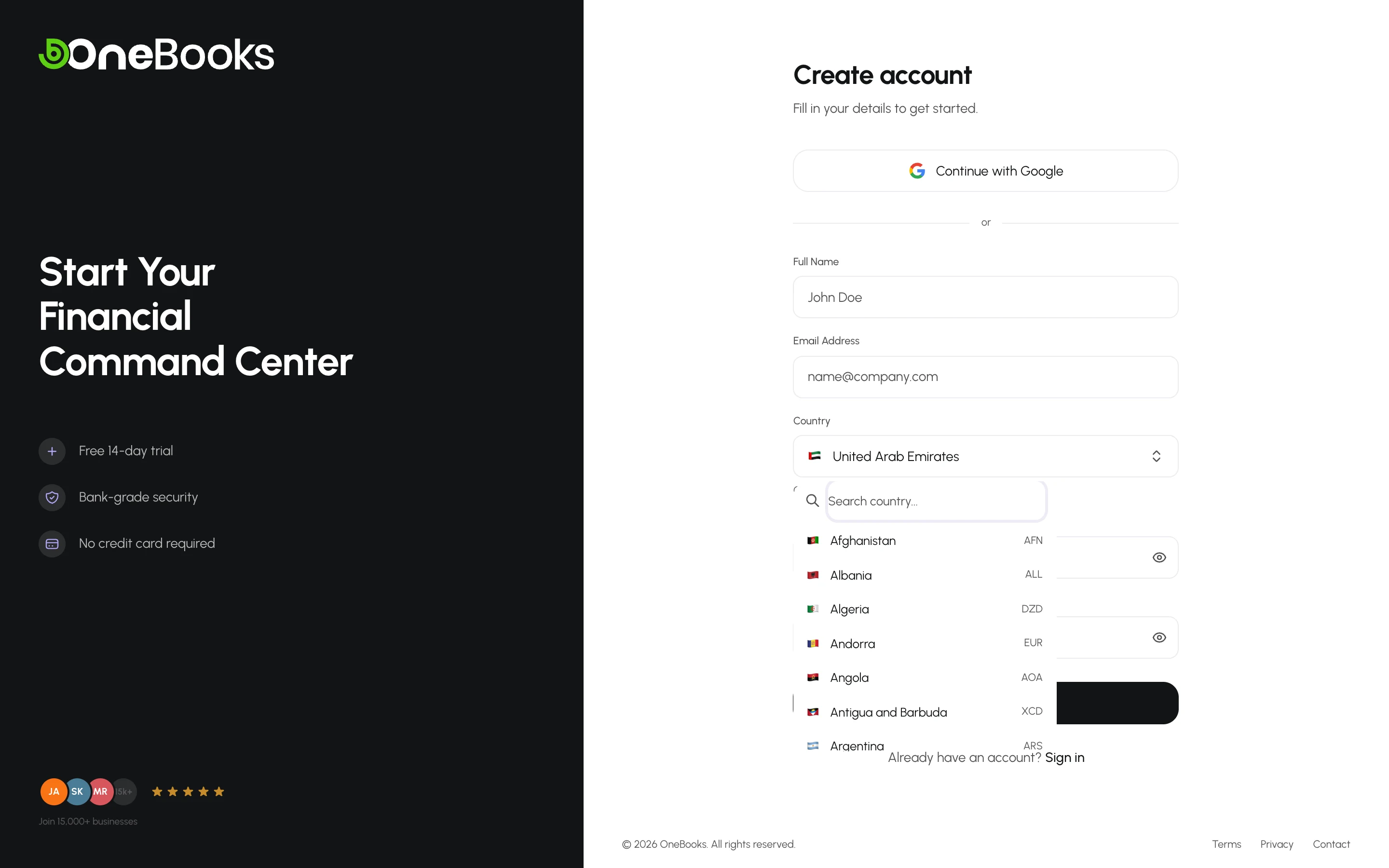
Section titled “Pick the country”- On the sign-up form, open the Country list and type to search.
- Select your country. A hint under the field shows the currency and tax that will be applied.
- If you chose the United States or India, a State list appears — pick the state your business is registered in. Sales tax (US) and GST place of supply (India) depend on it.
- Continue with the sign-up.
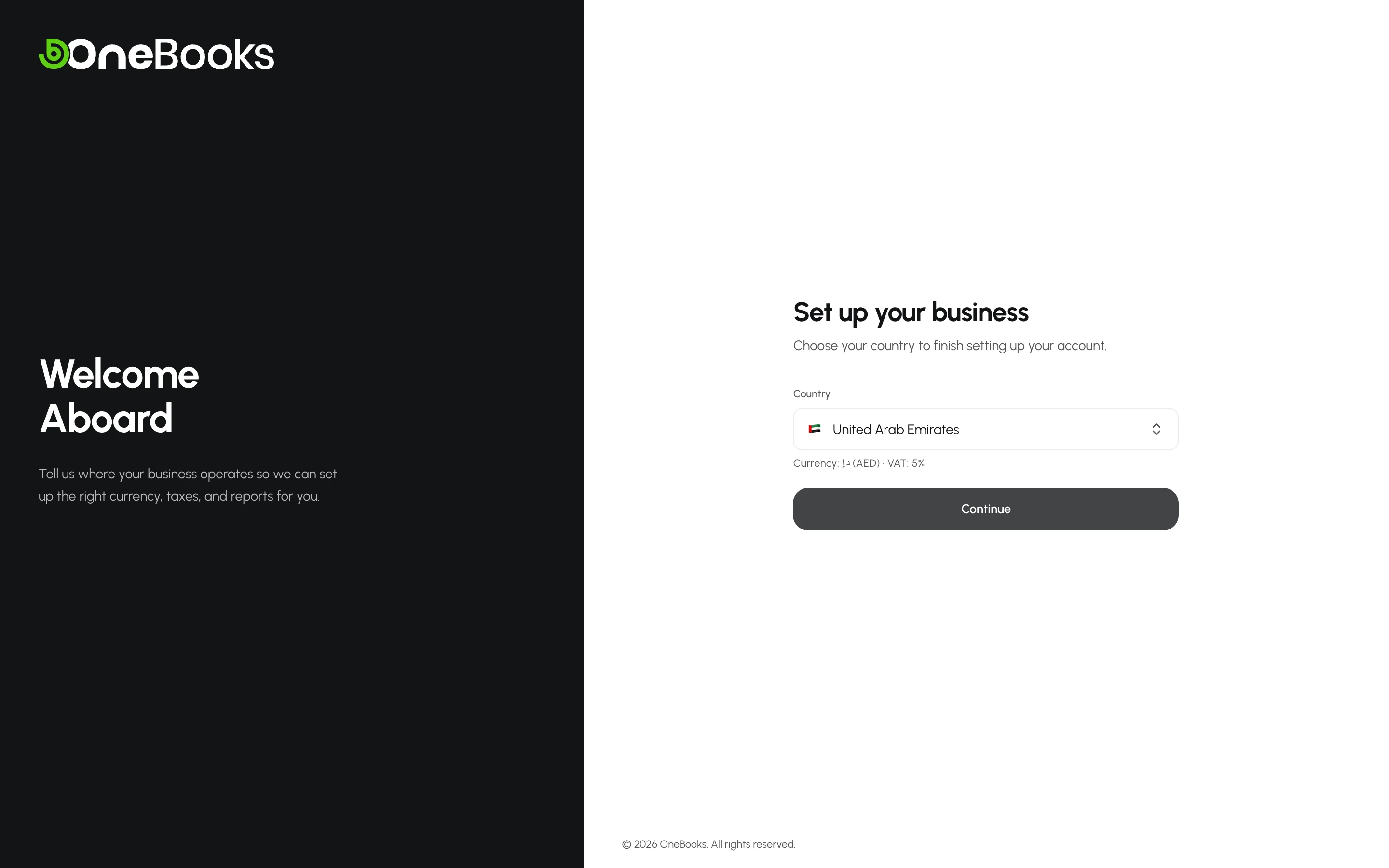
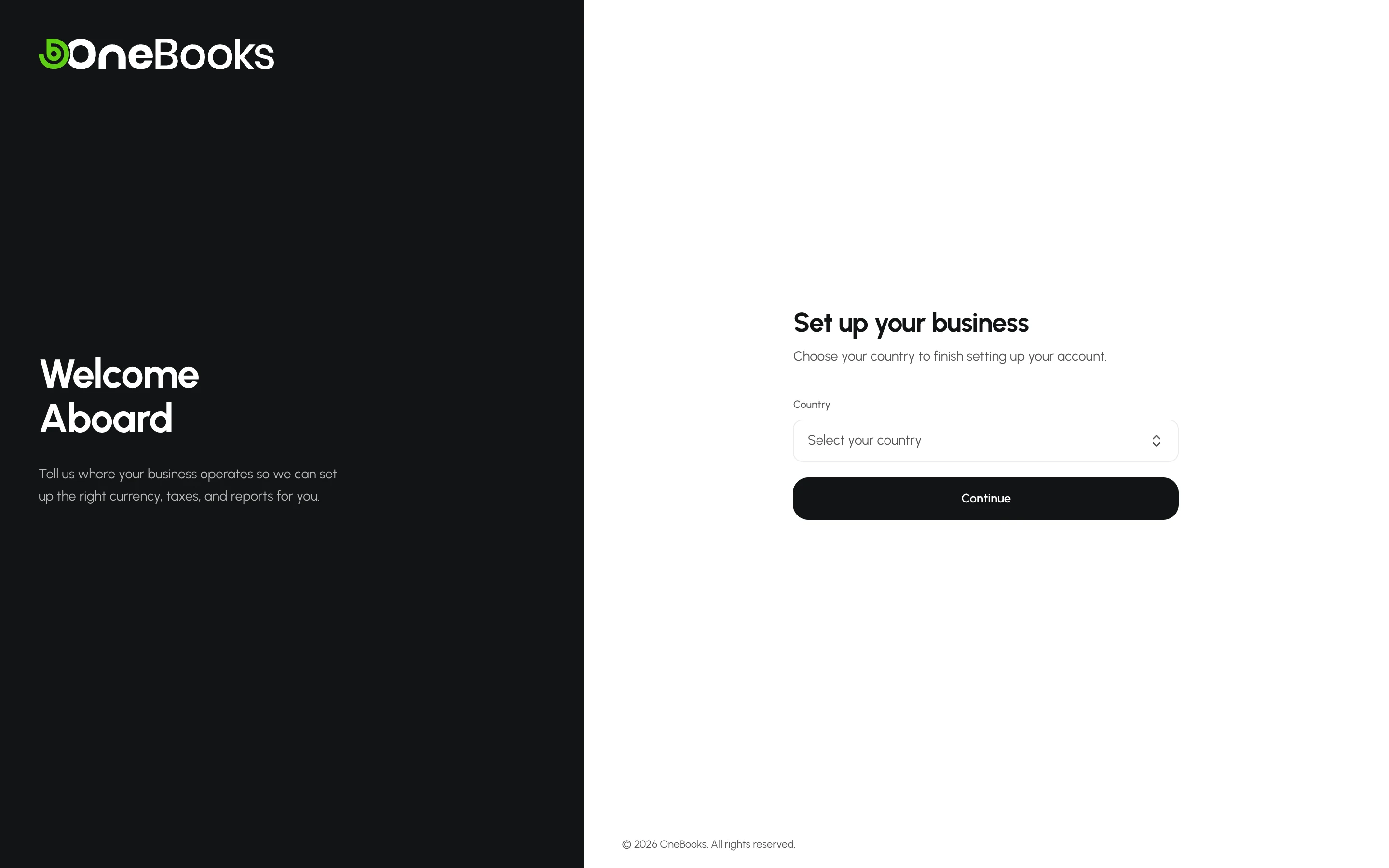
Google sign-ups see the same choice on a separate Set up your business screen the first time they sign in.
What the country sets
Section titled “What the country sets”| Setting | Example | Where to change it later |
|---|---|---|
| Currency and symbol | AED د.إ, SAR ر.س, INR ₹, USD $ | Fixed by country. |
| Decimal places | 2 for most currencies; 3 for KWD, BHD and OMR; 0 for JPY | Fixed by currency — every amount, payment and journal line is rounded to it. |
| Tax name | VAT, GST, Sales Tax, IVA, ITBMS | Settings → Business Profile → Tax Name |
| Default tax rate | 5% (AE), 15% (SA), 18% (IN), 20% (GB), 12% (GT) | Settings → Tax Settings |
| Tax-inclusive pricing | On for the UAE and the UK, off for Saudi Arabia and India | Settings → Tax Settings → Tax Inclusive Pricing |
| State (US, IN) | Texas, Maharashtra | Settings → Business Profile → State / Province |
Country guides: Saudi Arabia, India, United Arab Emirates, Qatar, Kuwait, Bahrain and Oman, United States, United Kingdom, Guatemala, El Salvador and Panama, other countries.
Changing the country later
Section titled “Changing the country later”You can change the country in Settings → Business Profile only while the business has no recorded transactions. Once an invoice, purchase, expense or journal entry exists, the field is locked, because the currency and tax accounts of every posted document depend on it. To change it after that, open a support request with the category Country change — see Get support.