

The Loyverse integration posts one balanced journal entry per day — a Z-report — with net sales split by tax rate, the tax collected, tips where applicable, and the money received split by payment type into your cash and bank accounts.
Connect
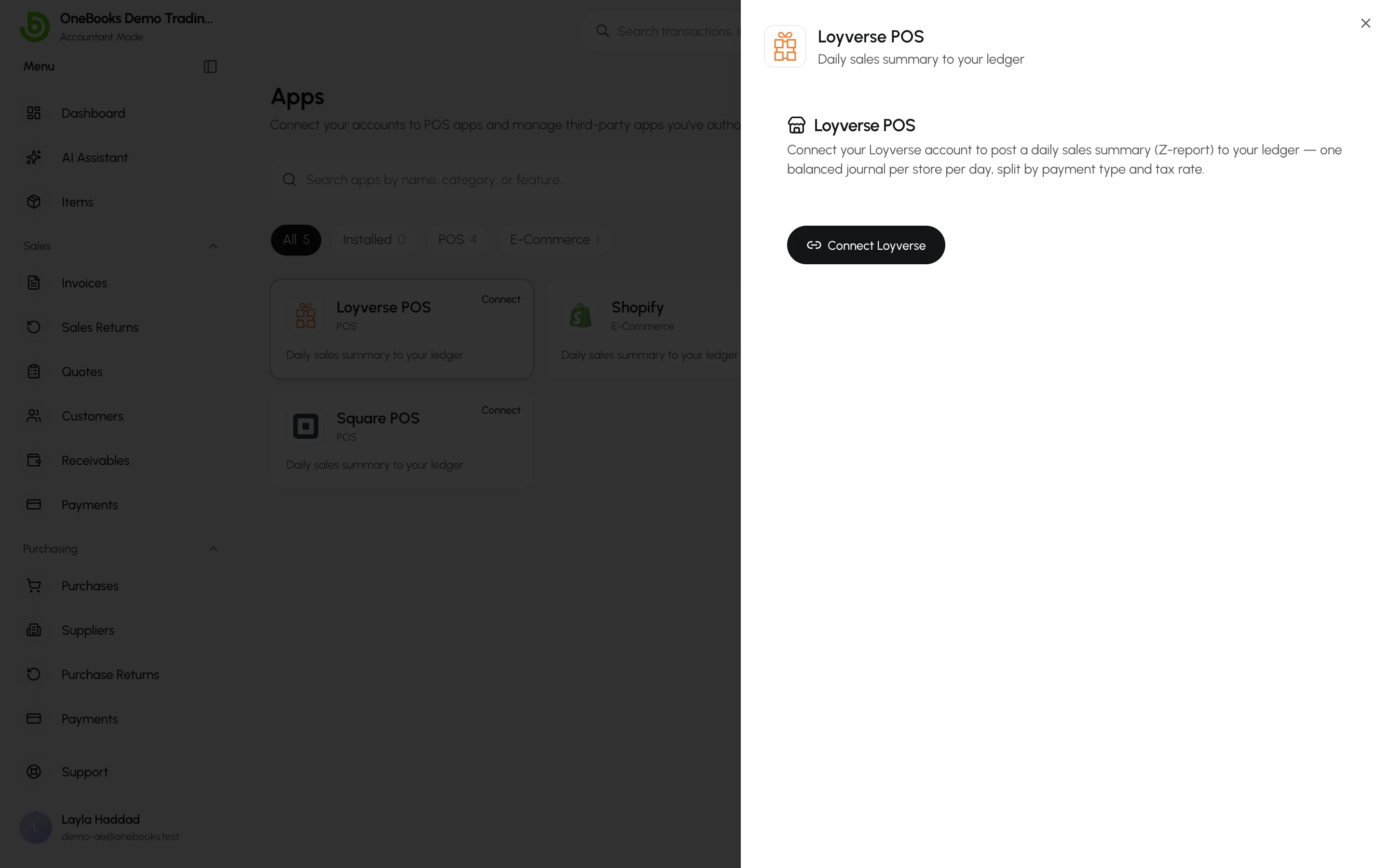
Section titled “Connect”- Open Apps → Integrations, select Loyverse POS and Connect Loyverse, then authorise in Loyverse.
- Choose the store to sync and its timezone.
Map accounts
Section titled “Map accounts”Before the first sync, tell OneBooks where each figure goes. Defaults are proposed; change them if you use custom accounts.
- Payment type → debit account — each Loyverse payment type posts to the chosen cash or bank account; add more accounts under Cash or Bank to split tenders further.
- Tax mappings — each Loyverse tax maps to a OneBooks tax rate.
Any payment type without a mapping makes that day’s sync fail with a clear message — map it and re-sync.
The sync
Section titled “The sync”- Runs automatically every hour and posts each completed day in the store’s timezone.
- Manual re-sync — enter a date range (or leave it empty for a catch-up of all unsynced days). A day that was already posted is reversed and re-posted, never duplicated.
- Each day’s status is listed under the connection: Pending, Posted, Failed (with the reason) or Skipped (no sales).
Disconnect
Section titled “Disconnect”Disconnect stops the sync and removes stored tokens; posted entries stay in the ledger.