

Bank reconciliation proves that what is in your books matches what the bank says. You upload the bank’s statement, OneBooks suggests a match for every line, you confirm or create the missing entries, and you lock the period once the closing balances agree.
Before you start
Section titled “Before you start”- The bank account exists under 1210 Bank — see Cash and bank accounts.
- You have the statement as CSV or Excel with a date, a description and either a single amount column or separate debit and credit columns. Most bank exports work unchanged.
- Accountant mode, with the bankRecon.manage permission.
1. Open the hub
Section titled “1. Open the hub”Accounting → Bank Reconciliation lists your cash and bank accounts with the number of statements, drafts and the last reconciled date.
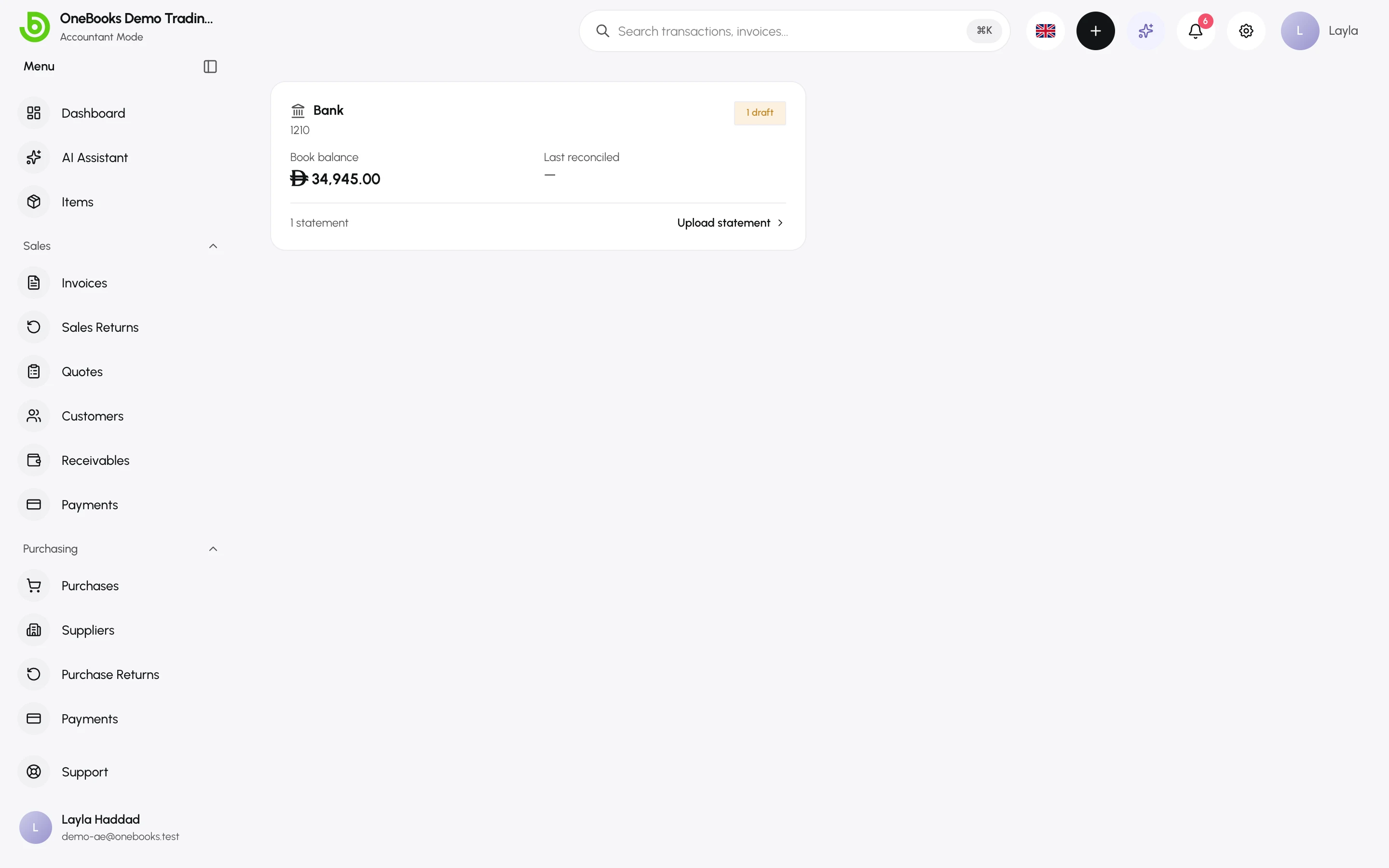
Select an account to see its statements.
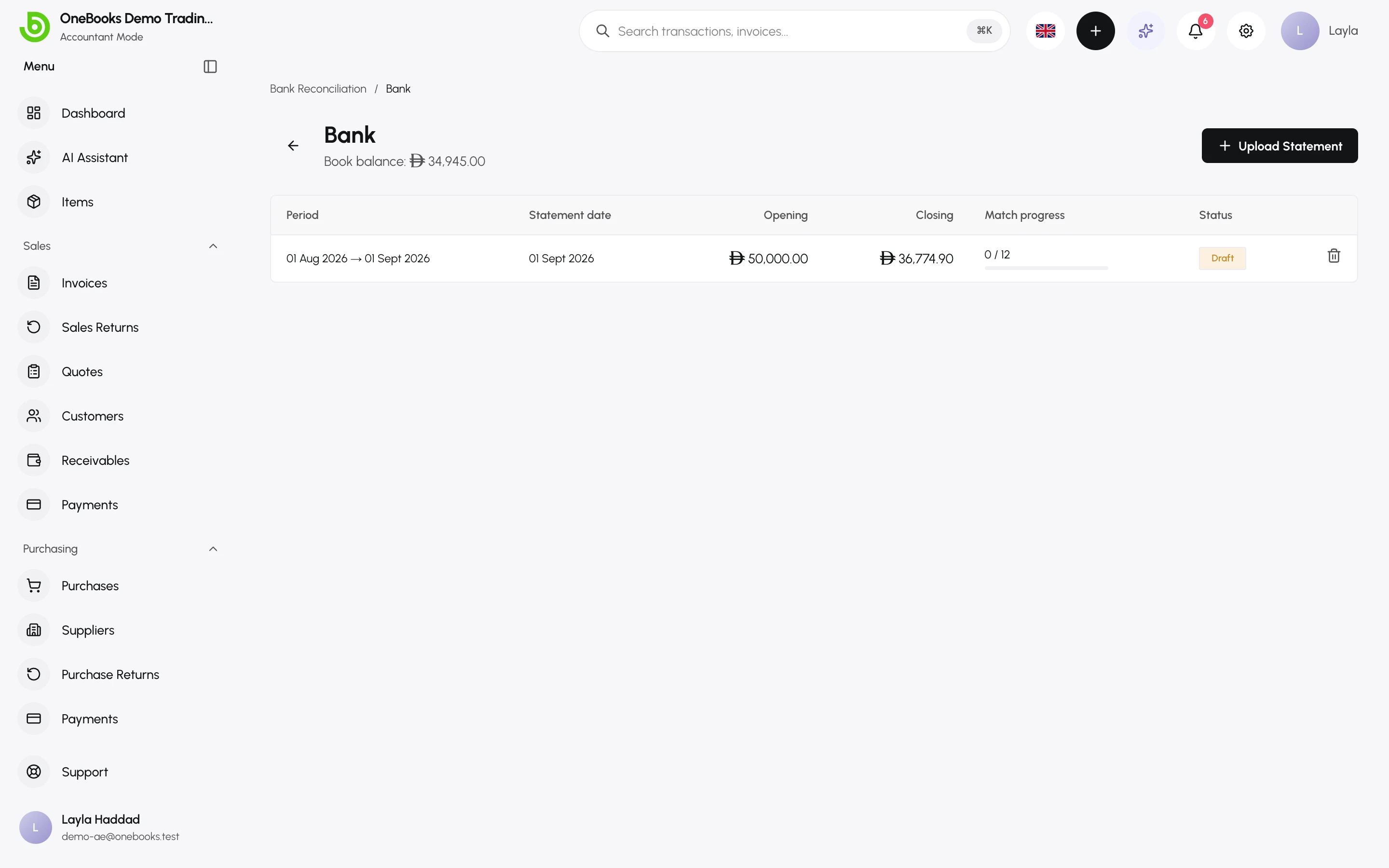
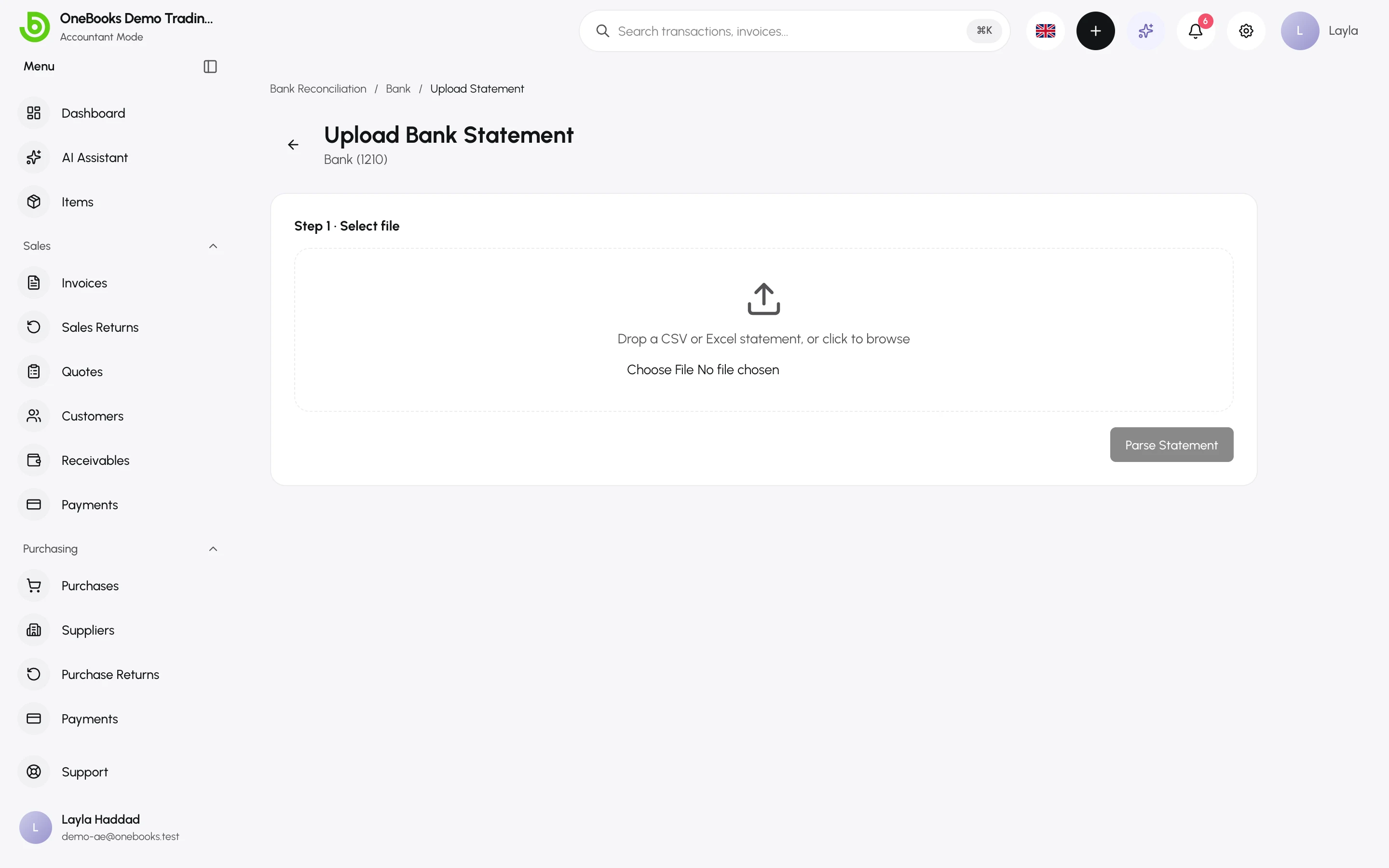
2. Upload a statement
Section titled “2. Upload a statement”- Select Upload statement, drop the file or browse for it, then Parse Statement.
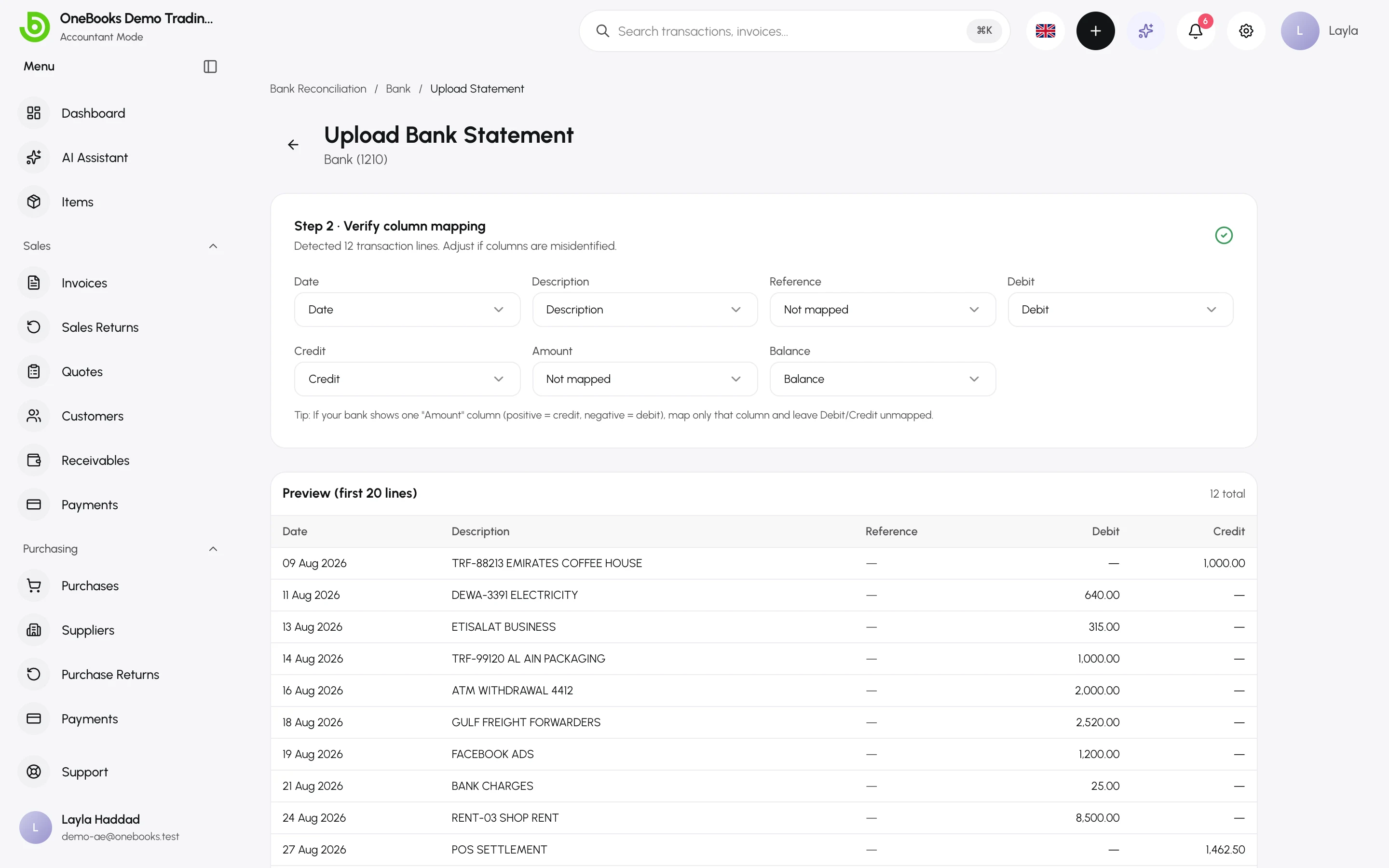
- Check Step 2 · Verify column mapping: OneBooks detects the date, description, reference, debit/credit or amount and balance columns from the headers. Correct any column that is Not mapped or wrong; the preview updates.
- Enter the statement date, the period it covers and the opening and closing balances printed on the statement.
- Select Save.
Overlapping periods on the same account are rejected — delete the earlier draft or change the period.
3. Match the lines
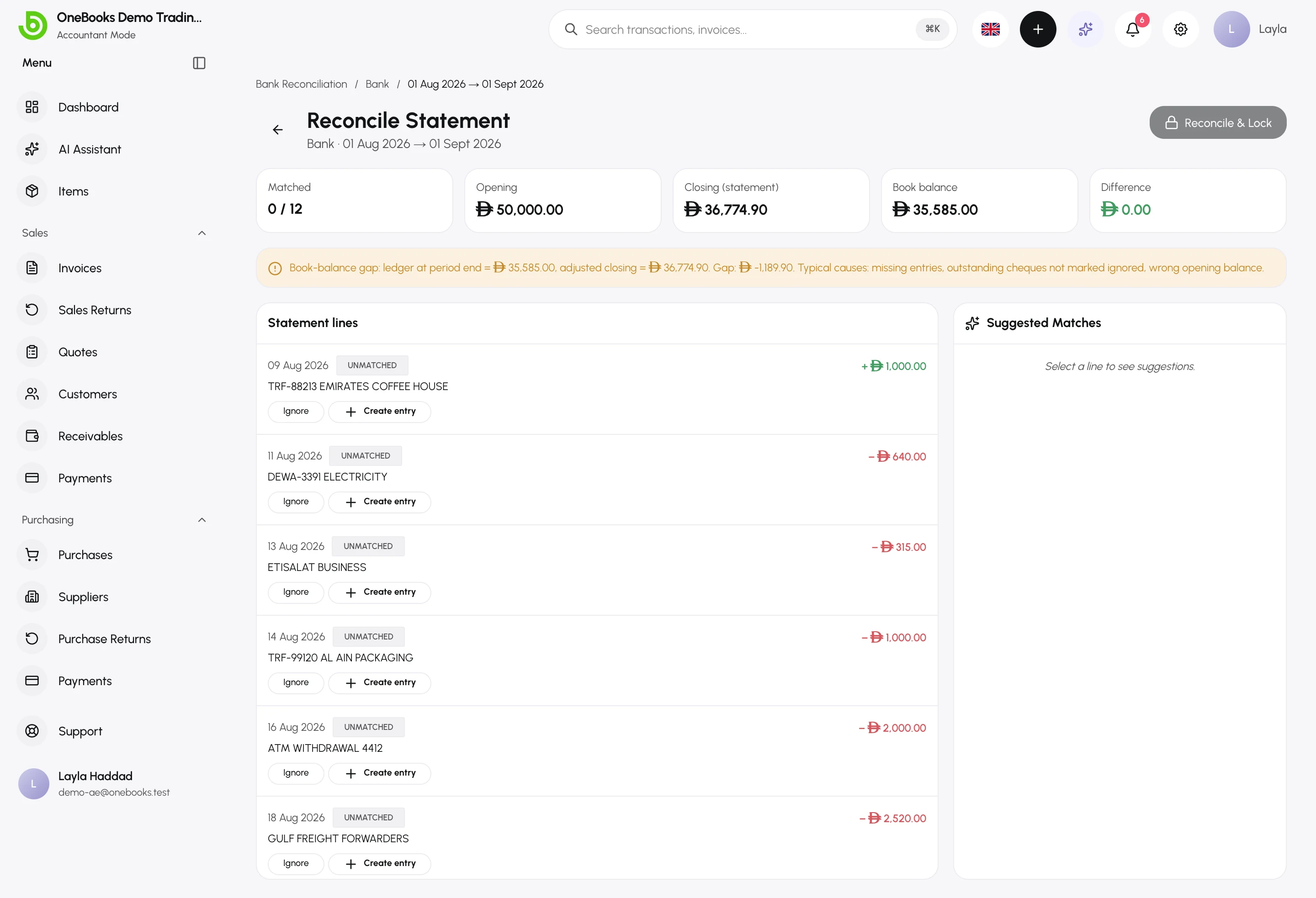
Section titled “3. Match the lines”The statement page lists every bank line with its status: Unmatched, Matched, Ignored or Created.
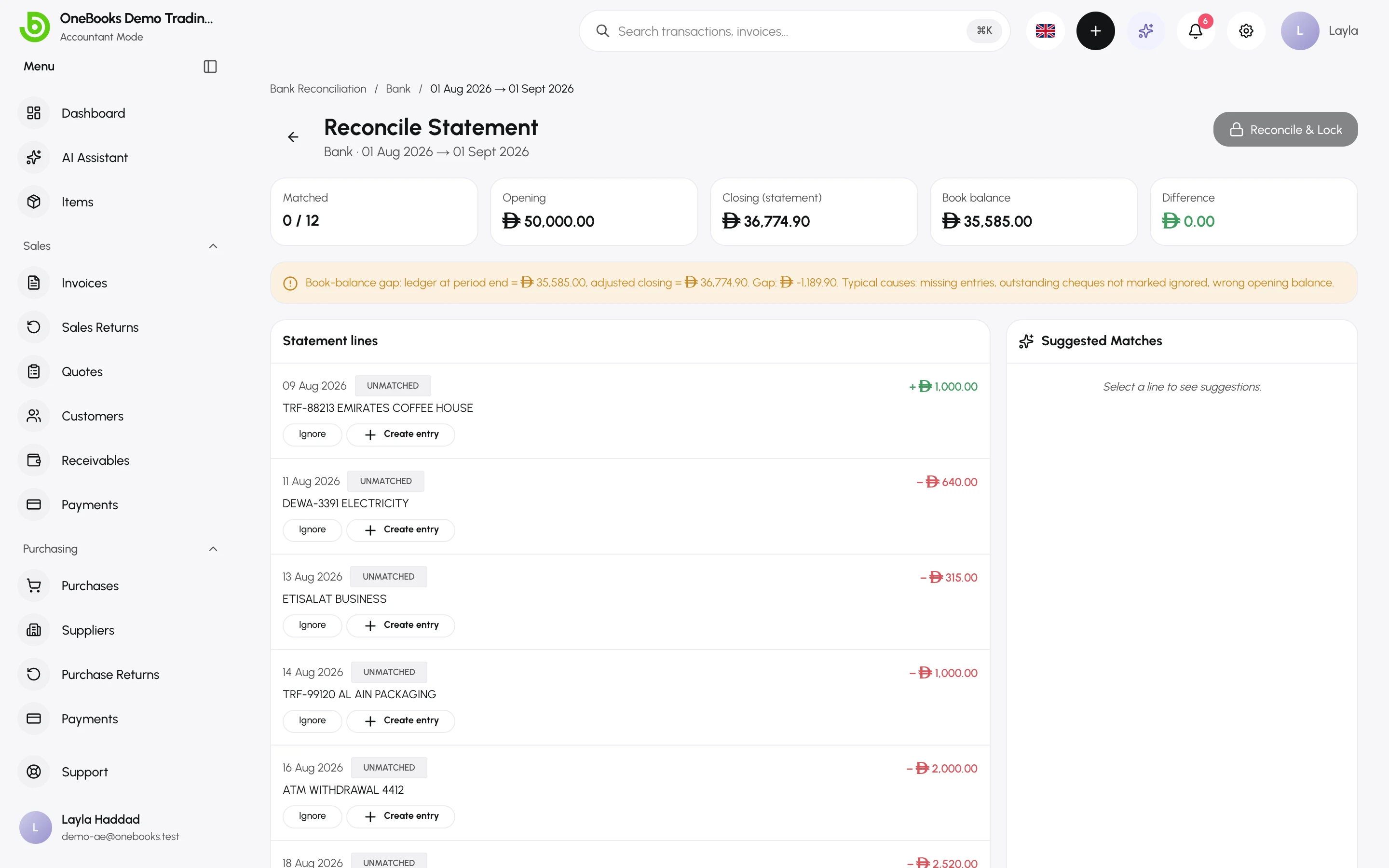
For each line:
- Accept a suggestion — OneBooks proposes payments, supplier payments and journal entries with the same amount around the same date. Select the suggestion to match it.
- Match manually — pick any unmatched payment or entry.
- Create — for a line with nothing in the books yet: a customer payment (choose the customer and invoice), a supplier payment (supplier and bill) or a journal entry with a counterpart account such as Bank charges or Interest income. The entry is posted and matched in one step.
- Ignore — for lines that do not belong in the books (an internal transfer already recorded elsewhere).
- Unmatch — undo any of the above.
4. Reconcile
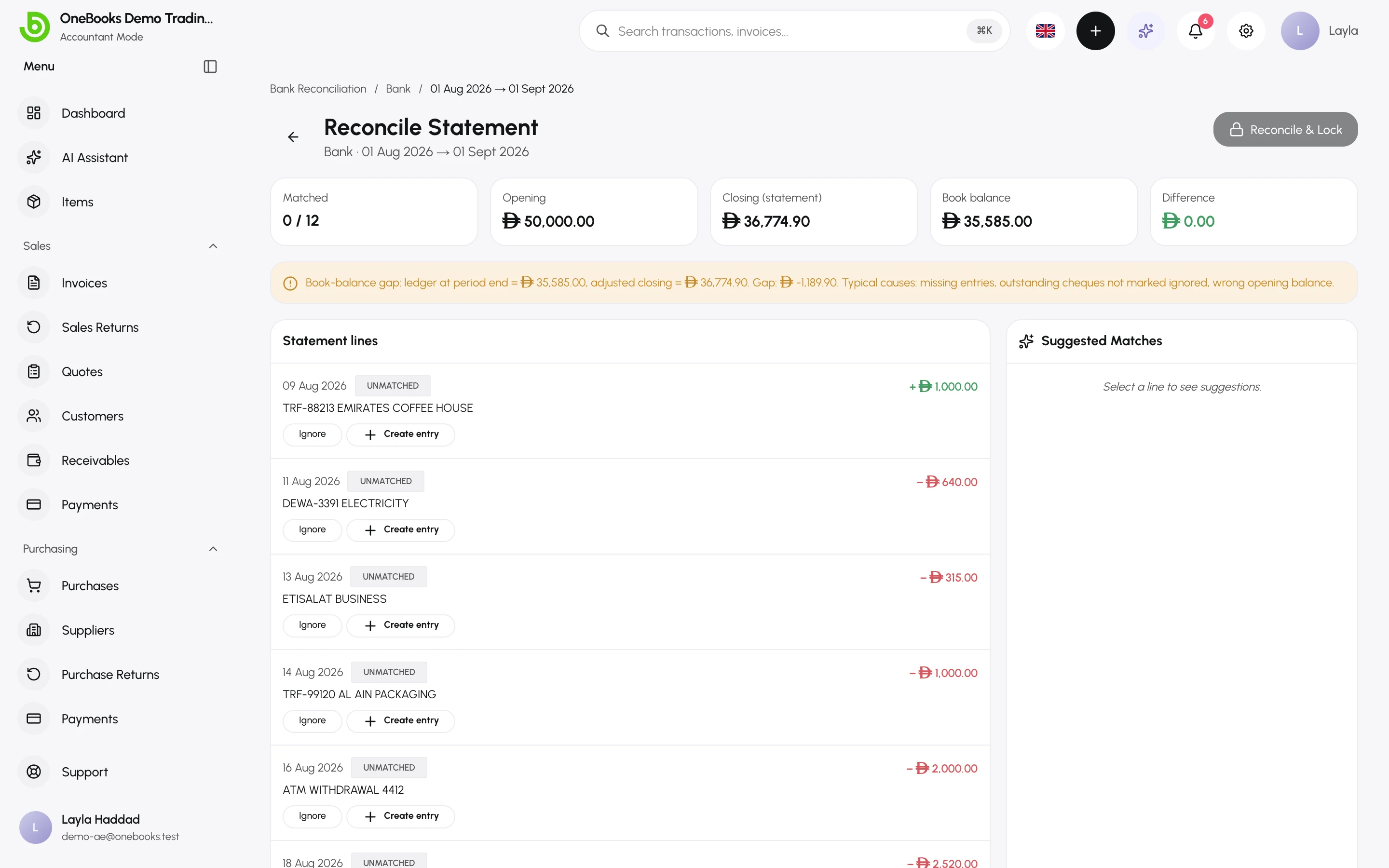
Section titled “4. Reconcile”When the matched total plus the opening balance equals the closing balance, select Reconcile & Lock. The statement’s status becomes Reconciled and the account’s last reconciled date and balance update. Unreconcile reopens it if you find a mistake later.
Rules that keep the books honest
Section titled “Rules that keep the books honest”- A payment or entry can be matched to only one statement line.
- Matching never changes the amount of a document — if the bank amount differs, create a separate entry for the difference (for example bank charges).
- Archived or reversed entries are never offered as matches.