

An invoice bills a customer. While it is a draft you can change anything; once sent it is final, numbered and posted to the ledger, and corrections happen through a credit note or a void.
The list
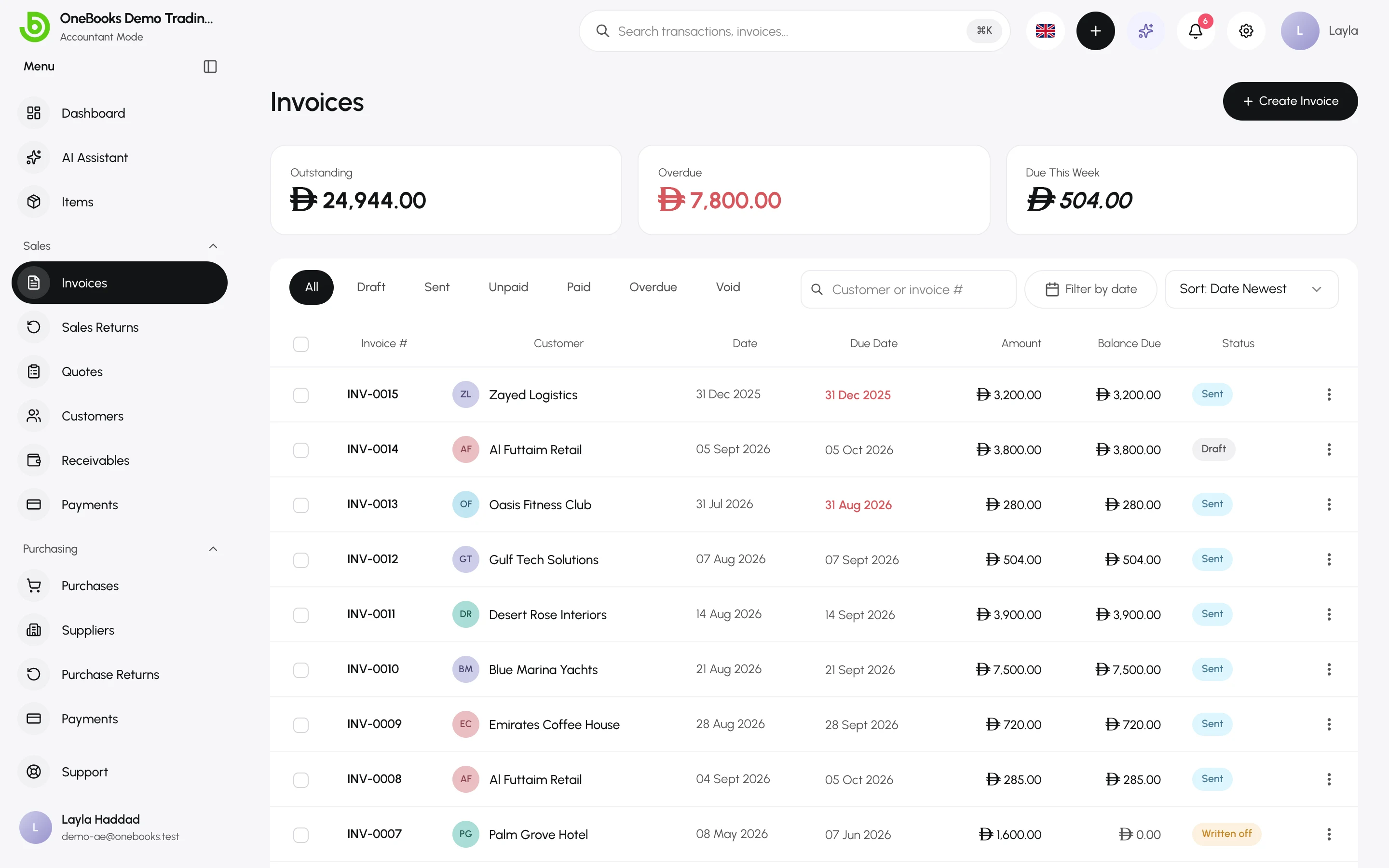
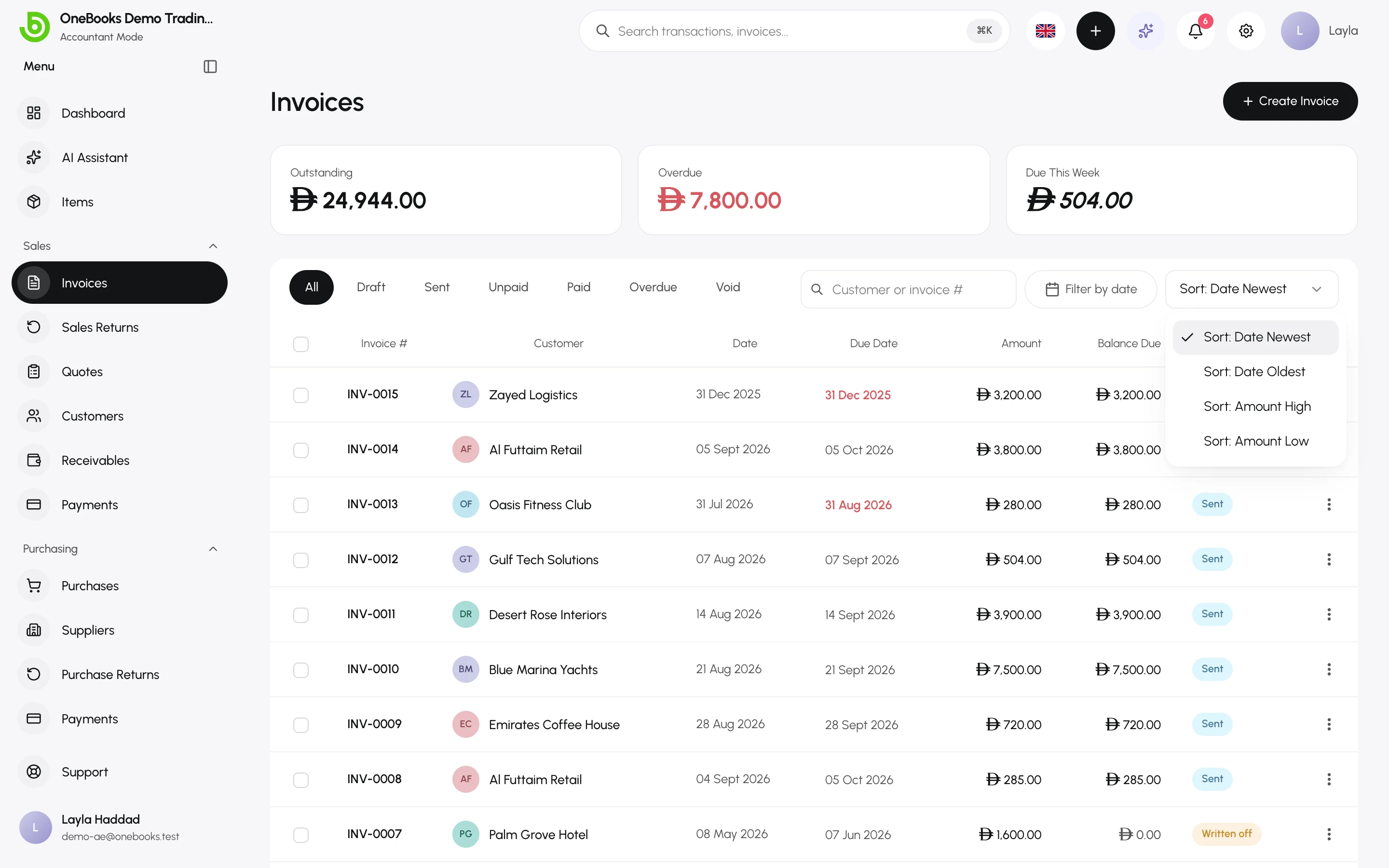
Section titled “The list”Sales → Invoices shows every invoice with status, due date and balance. Filter by status (including Overdue and Unpaid), by date, or search by number or customer. The summary tiles show what is outstanding, what is overdue and what is due this week.
Create an invoice
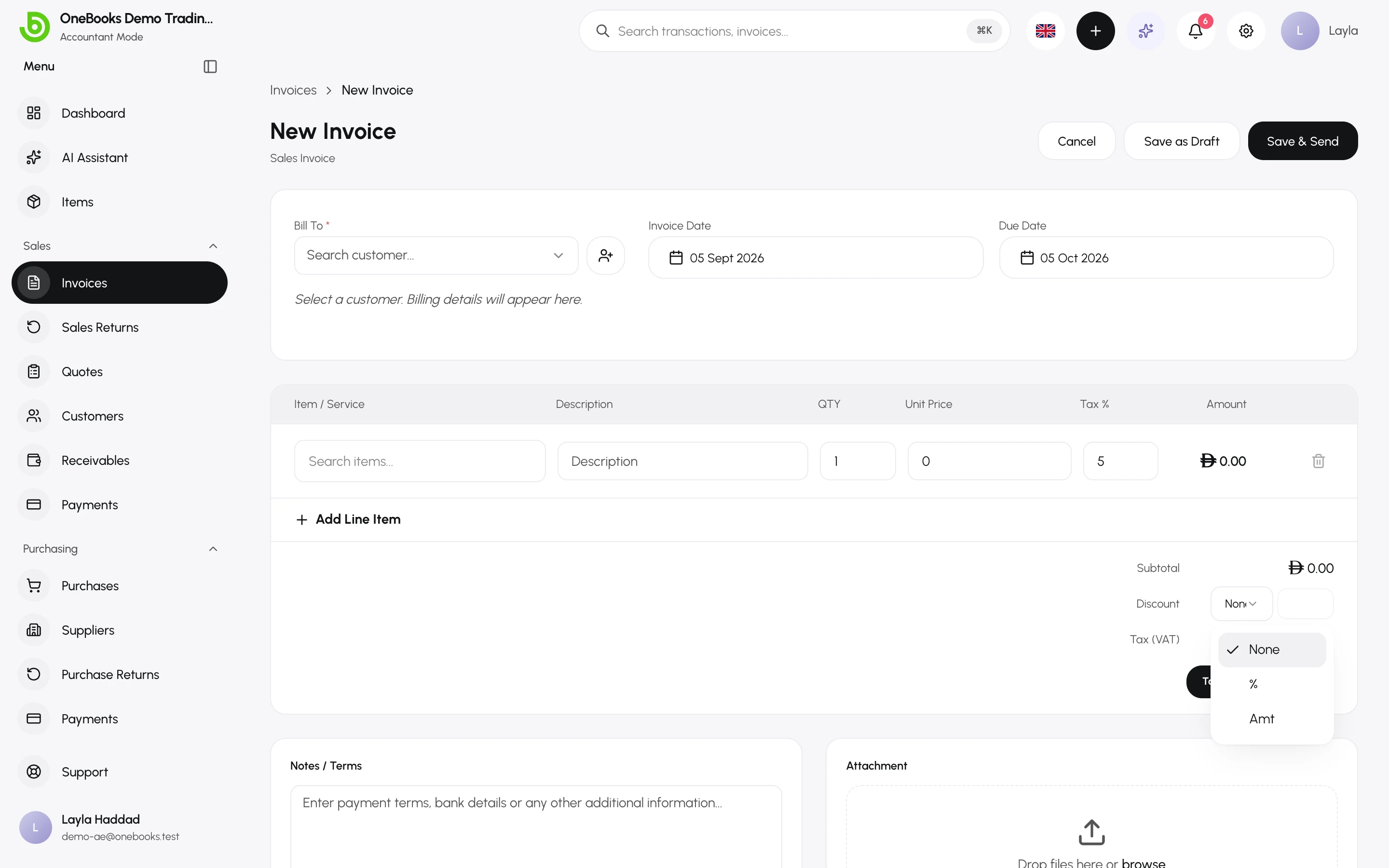
Section titled “Create an invoice”- Select Create Invoice (or Quick Create → Sales Invoice from any page).
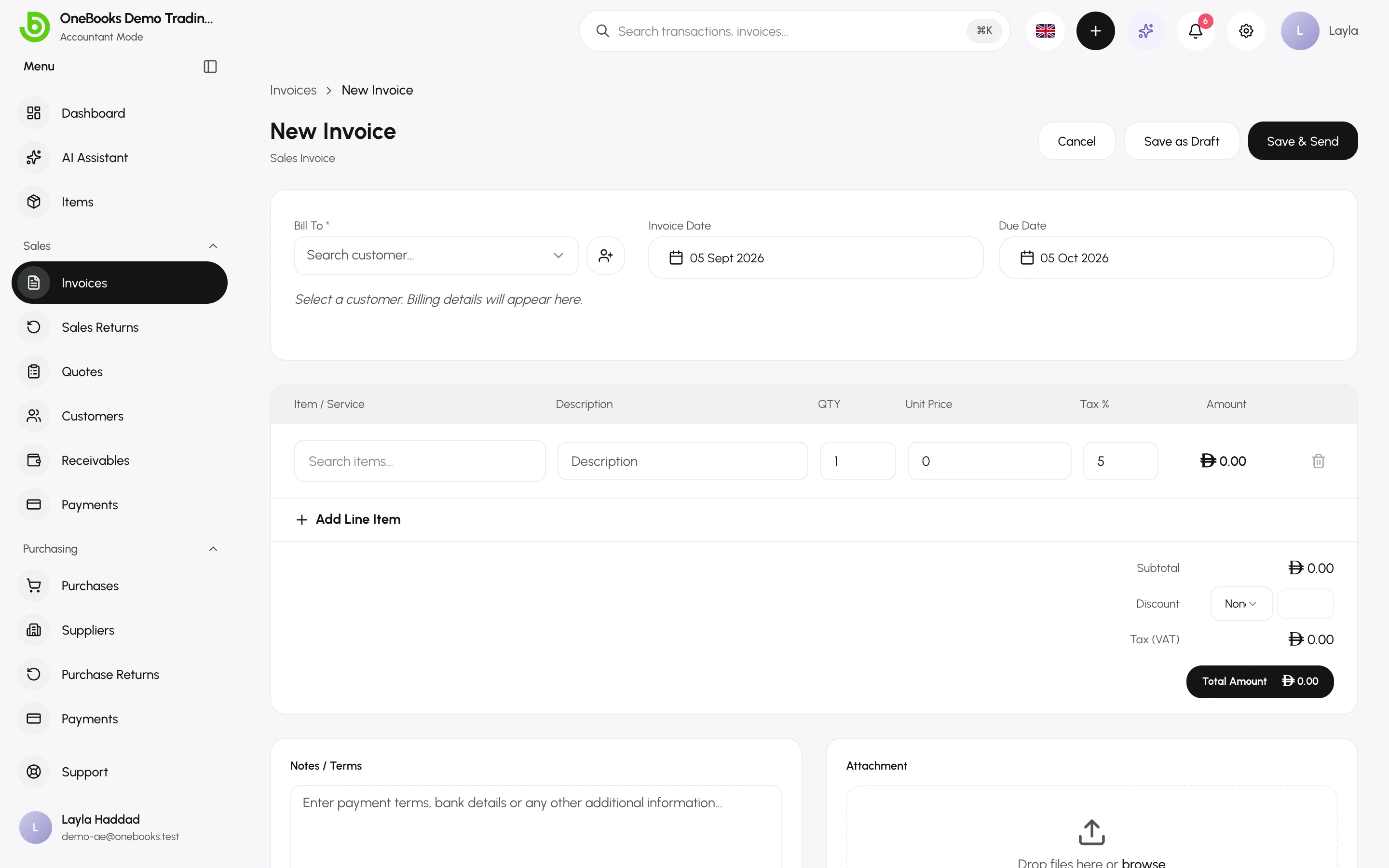
- Bill To — pick a customer, or type a new name and add it on the spot.
- Invoice Date and Due Date — the due date defaults from the customer’s or business’s payment terms.
- Reference — optional, for example the customer’s purchase-order number.
- Line items — pick an item (its description, price and tax rate fill in) or type a description; set quantity, unit price (up to four decimals) and tax %. Select Add Line Item for more lines.
- Discount — a percentage or a fixed amount, applied to the subtotal before tax.
- Notes / Terms — payment terms, bank details, thanks.
- Save as Draft, or Save and then send.
Tax on each line
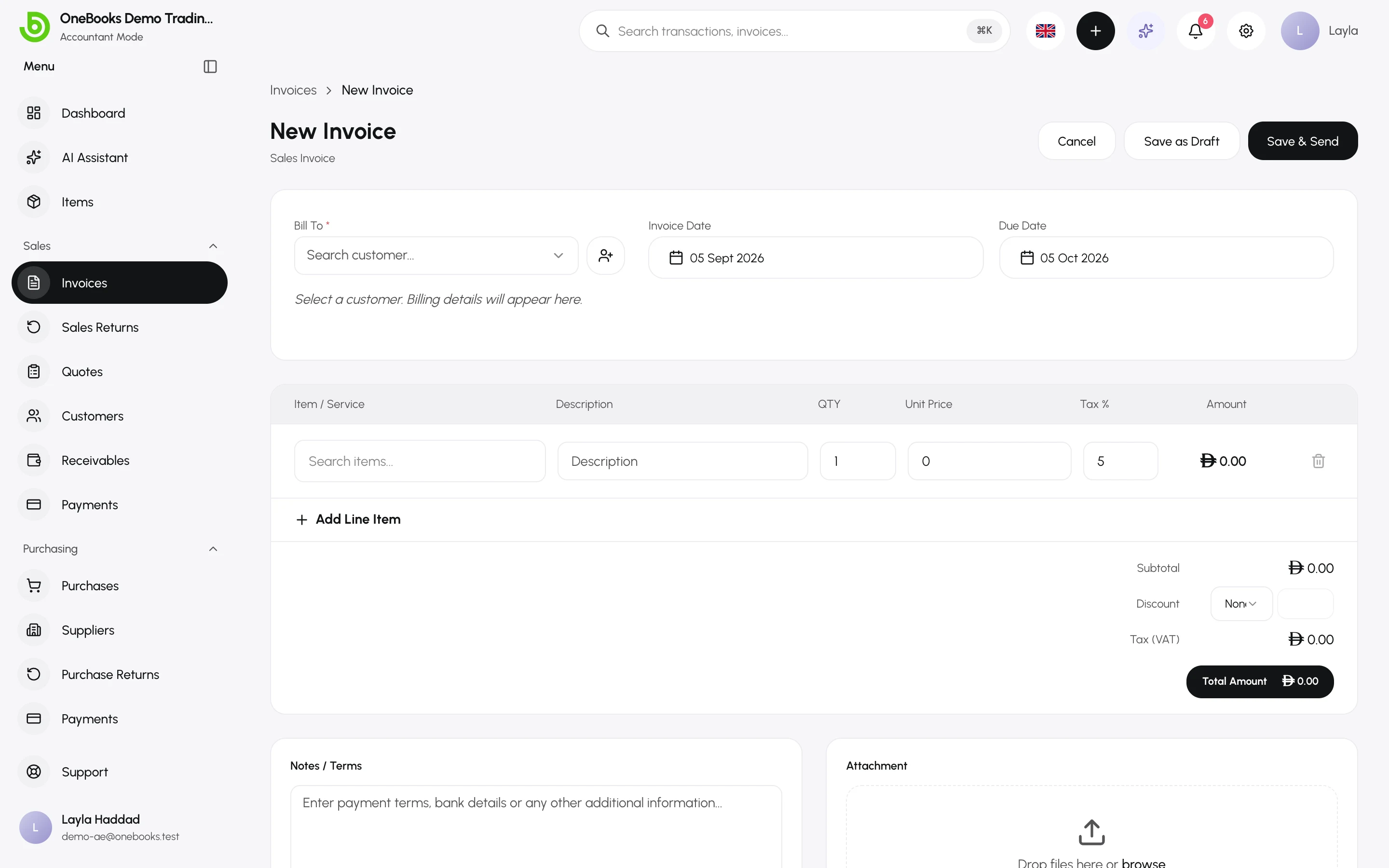
Section titled “Tax on each line”Each line carries its own rate, so one invoice can mix standard-rated, reduced and zero-rated lines. With tax-inclusive pricing on, unit prices include tax and the totals panel shows the extracted tax. See Tax settings.
Reverse charge
Section titled “Reverse charge”Switch on Reverse charge when the customer accounts for the tax (for example some cross-border B2B supplies). The invoice then carries no tax line, and the customer self-assesses. The switch can only be changed while the invoice is a draft.
Indian businesses also set the place of supply (state code), which decides whether the GST splits into CGST/SGST or IGST on the GSTR reports. See India.
Edit a draft
Section titled “Edit a draft”Open a draft and select Edit. Line items, discount and reverse charge are editable only while the invoice is a draft — they change the totals and therefore the accounting entry. Notes, terms and reference stay editable after sending.
Send an invoice
Section titled “Send an invoice”- On the invoice form, select Save & Send, or open a draft invoice and choose a channel in the header.
- Choose Email (to the customer’s email), WhatsApp (opens a message with the PDF link) or Download PDF (you send the PDF yourself).
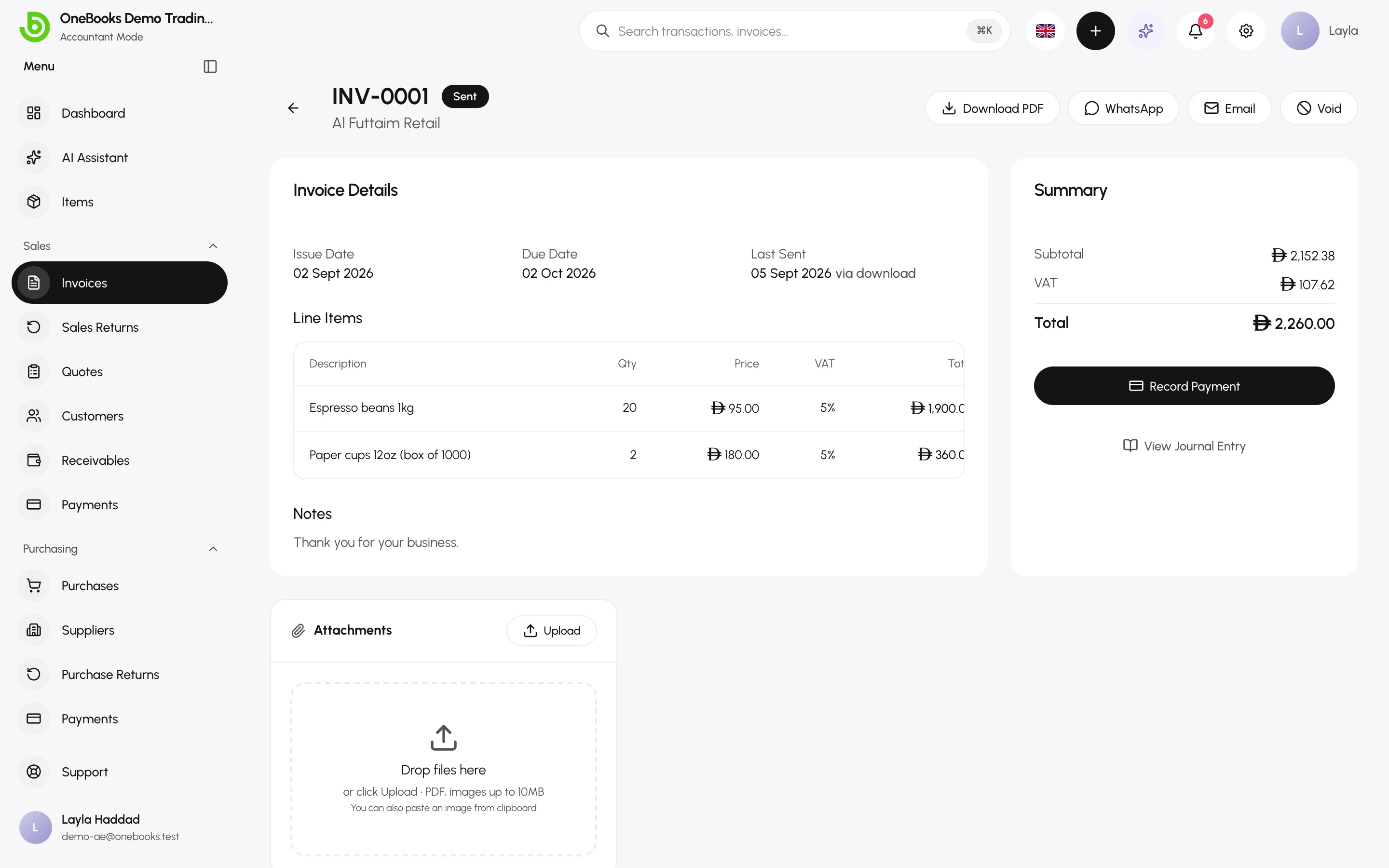
The status becomes Sent and the accounting entry is posted. Saudi businesses also see the ZATCA submission state — see Saudi Arabia.
After sending
Section titled “After sending”- Download PDF any time; the layout comes from your print template.
- WhatsApp and Email re-send the invoice.
- Record Payment — see Payments received.
- Attachments — attach the signed delivery note or purchase order.
- View Journal Entry (Accountant mode) shows the posted lines.
- Void — see Invoice statuses, void and write-off.
Troubleshooting
Section titled “Troubleshooting”- “Cannot post on … — this period is locked.” The invoice date falls in a locked or closed fiscal year. Change the date or unlock the period — Fiscal years.
- “… is before the business’s first financial year”. Invoices can be backdated within the financial year you joined OneBooks in, but not before it; use an opening balance for older debts.
- Future dates are rejected. Invoices cannot be dated after today.