

A customer is anyone you invoice. Every customer has a page showing its documents, payments, running balance and history, and every invoice, quote and credit note is linked to one customer.
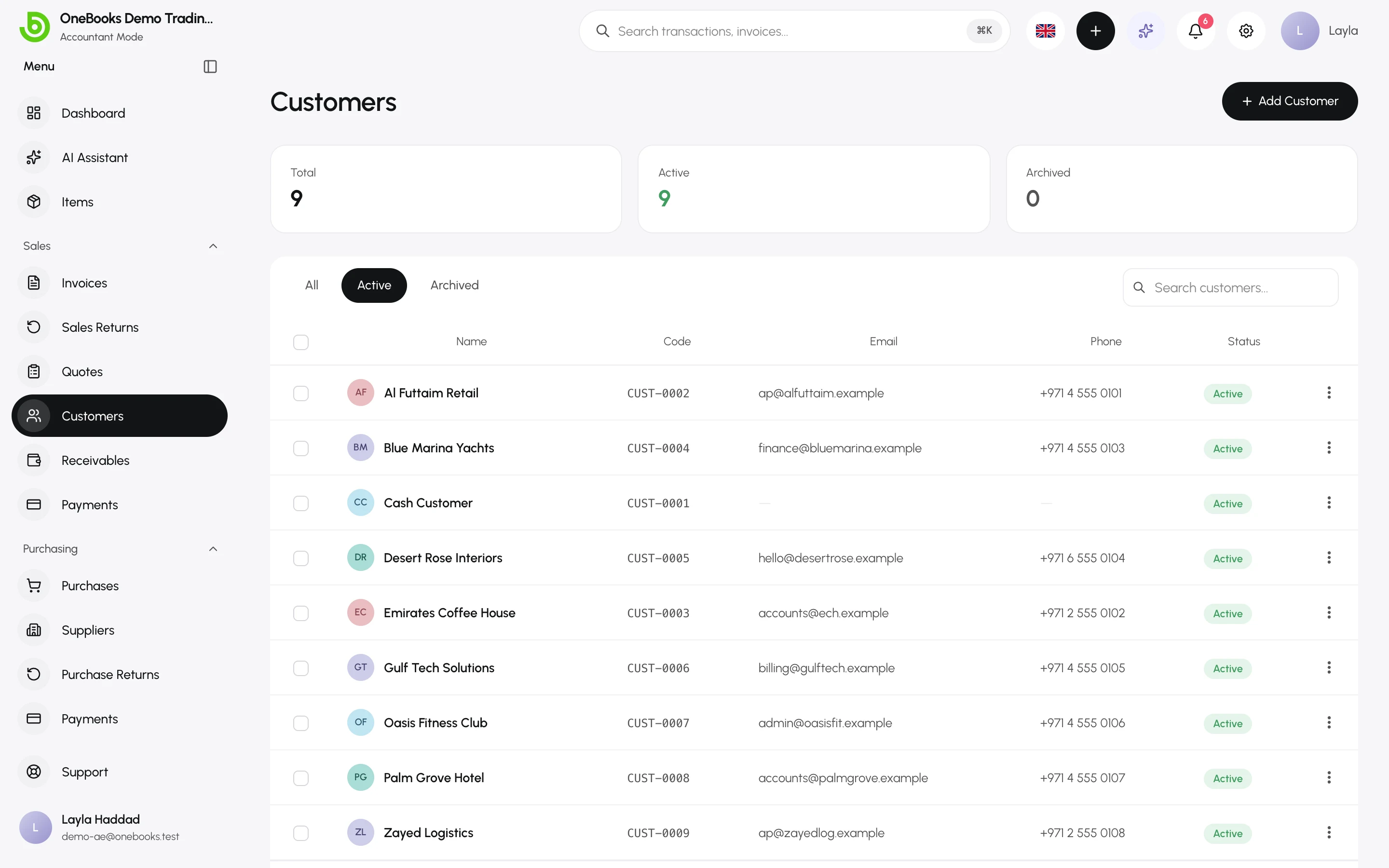
Add a customer
Section titled “Add a customer”- Open Sales → Customers and select Add Customer.
- Enter the name — the only required field.
- Add email and phone for sending documents, the address printed on documents, and the tax ID (VAT number, TRN, GSTIN) if the customer is tax-registered.
- Select Save.
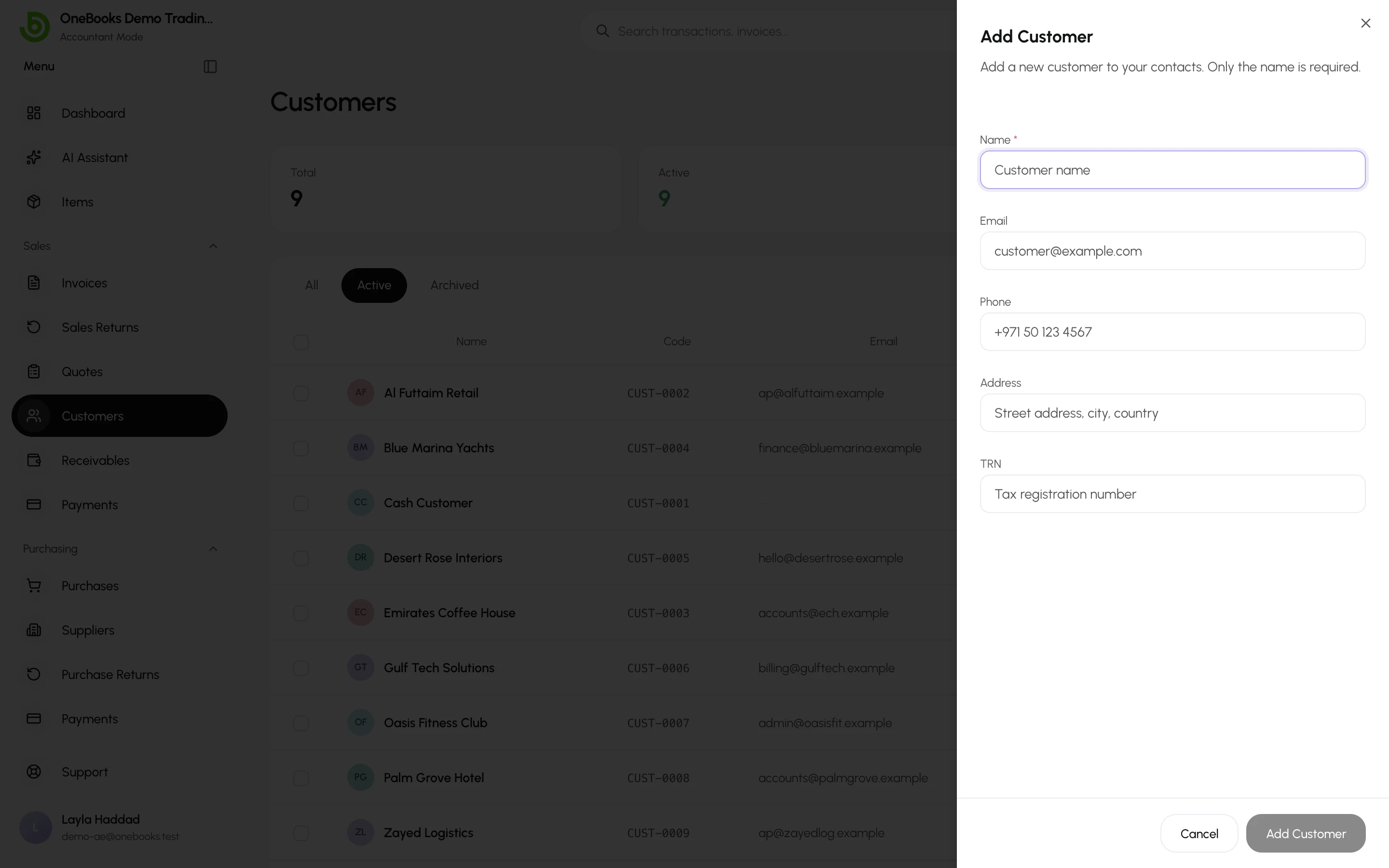
Saudi businesses see extra fields — Arabic name, VAT registration number and the national address (building number, street, district, city, postal code) — because ZATCA standard invoices require them. See Saudi Arabia.
You can also create a customer without leaving an invoice: type a new name in the Bill To picker and choose Add.
The customer page
Section titled “The customer page”Select a customer to open its page.
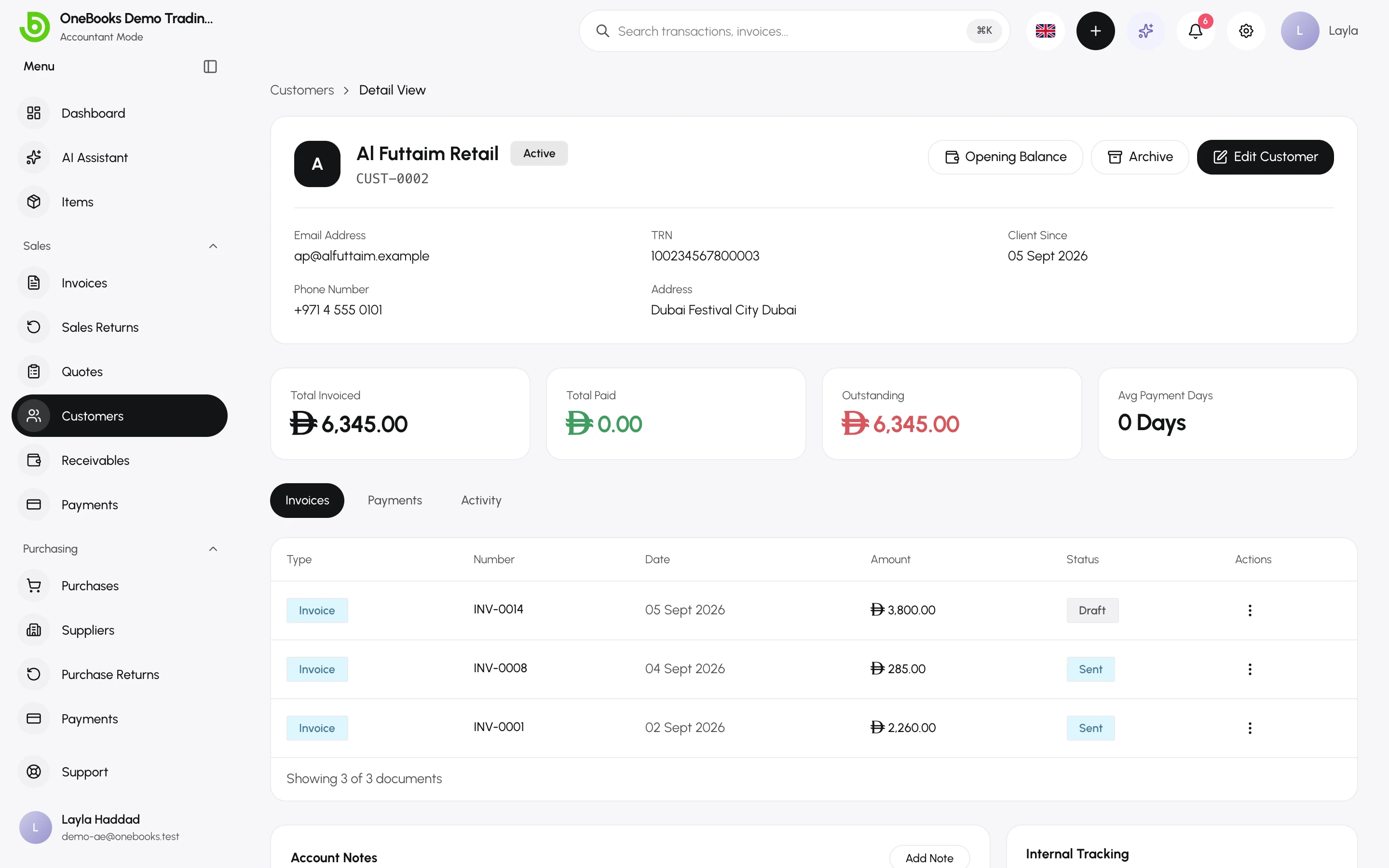
- Header — contact details, client since, and the current balance (what they owe you).
- Invoices — every invoice and credit note, with status and balance due.
- Payments — every payment received, with the invoices it was applied to.
- Activity — a timeline of what happened and when.
- Opening Balance — record what the customer owed you before you started using OneBooks; see Opening balances.
- Unapplied credit — a banner appears when a standalone payment or a credit note has money not yet applied to an invoice, with Apply credit to allocate it.
Edit, archive, restore, delete
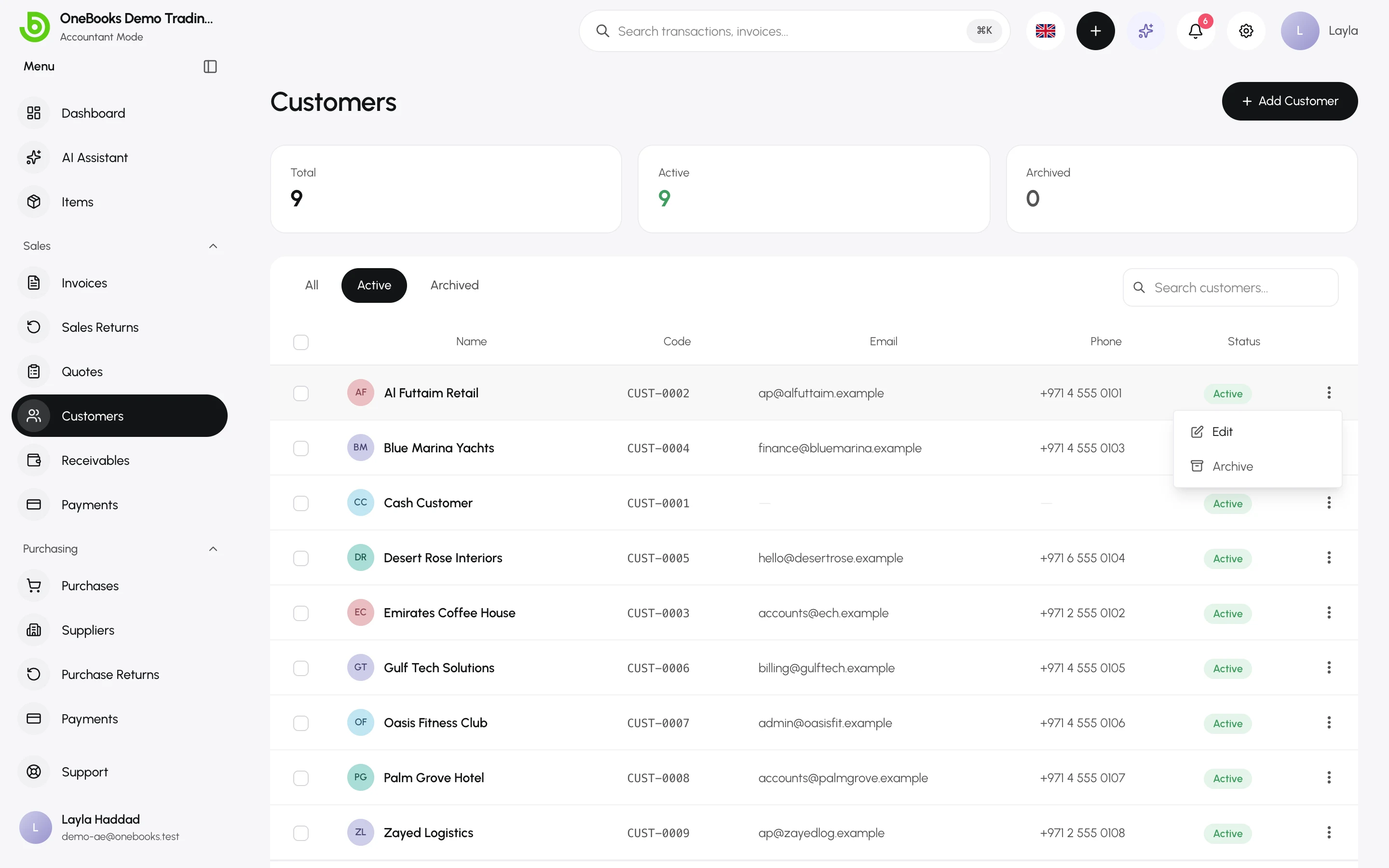
Section titled “Edit, archive, restore, delete”- Edit changes the details; existing documents keep the name and address that were printed on them.
- Archive hides a customer from pickers and lists while keeping its history. Use the Archived filter to find archived customers and Restore them.
- Delete permanently is available only to owners and admins and only for customers with no documents.
The Cash Customer
Section titled “The Cash Customer”Every business has a Cash Customer (code CASH) for walk-in sales that do not need a named customer. Point-of-sale integrations use it too.